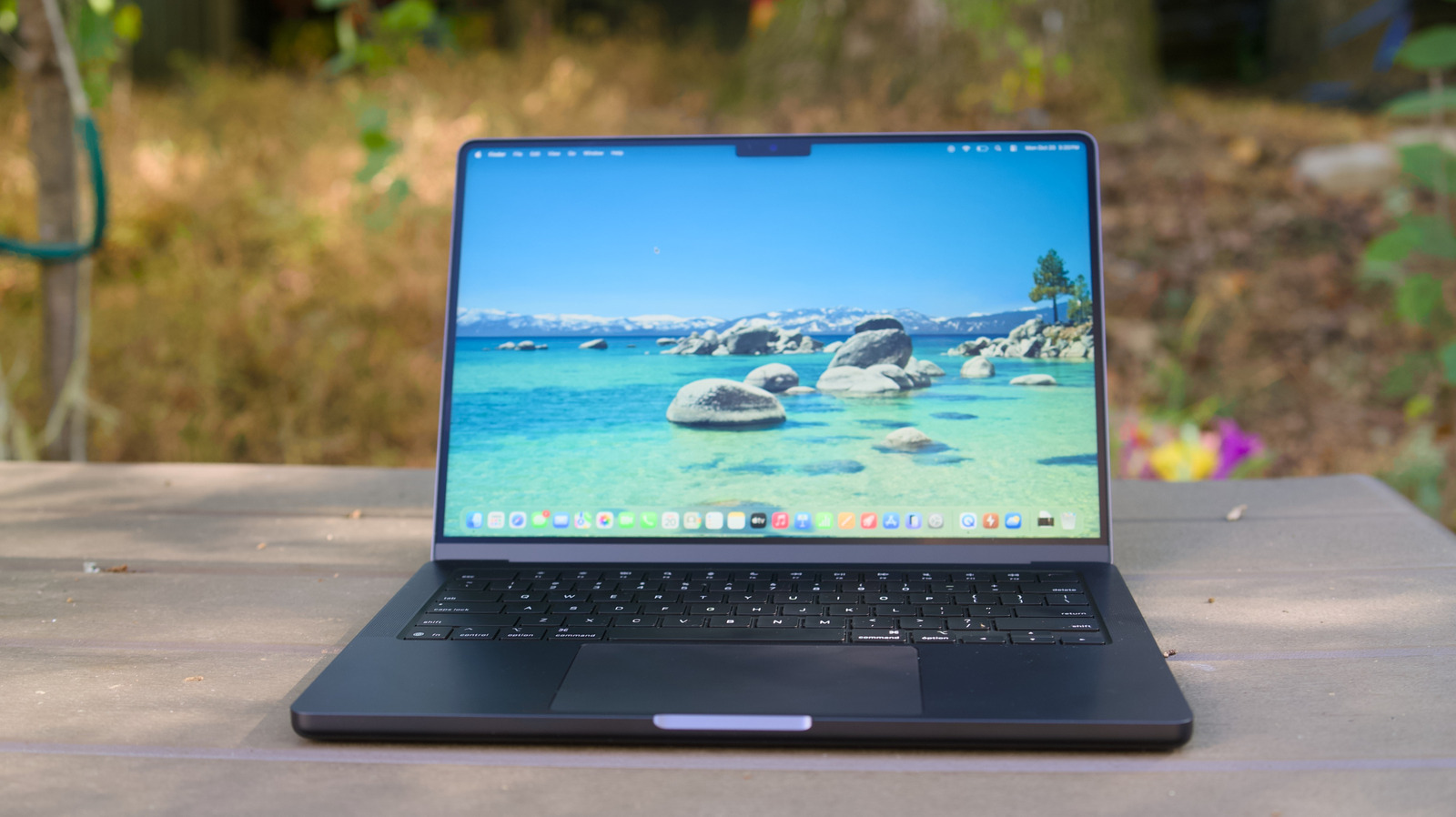
While jumping from Windows to Mac used to feel like landing on a completely different planet, that’s less the case today thanks to web apps. It doesn’t really matter which platform you’re using to log into Gmail, Google Docs or any other web service — they’re all pretty much the same in most web browsers. (There’s an argument to be made about how web apps have diluted our computing habits, but that’s a rant for another time.)
The first big thing you have to learn? There’s no native “right-click” on Macs. On Mac trackpads, you either have to click on something with two fingers, or hold down the Control key when clicking to get a secondary menu. That’s a throwback to early days of Macs, when Apple’s mice only had a single click button. Reportedly, Steve Jobs hated the idea of multi-button mice because they looked too complicated for regular users.
“To Steve’s credit — and ultimately to Apple’s credit — at his core was the idea that he wanted to come out with a product that wasn’t a ‘me too’ product, that was leapfrogging whatever the current technology was at that time,” former Apple designer Abraham Farag told Cult of Mac in 2014, describing an early Apple attempt at creating a multi-button mouse. “To him, I think he felt that if we held on to the idea of the one-button mouse it would force the UI designers to come up with something that was as clean as possible. What changed his mind was that he felt that users were finally ready to embrace an interface that had contextual menus and multiple buttons that did different things. But while he was going to accept that, he wasn’t going to accept a mouse that looked like anyone else’s.”
You can get Windows-like right-click functionality if you connect a standard two-button mouse, but that’s really only worth it for heavy-duty desktop work. If you’re switching to a Mac laptop, it’s easier to just learn the Apple method.
Simple things, like installing apps from outside of the App Store, can also be confusing to Windows users. Despite the App Store simplifying installations, you still occasionally have to drag and drop a Mac program into your Applications folder. Mac apps rarely used automatic automatic installers like you find on Windows. I’d argue Apple’s method is a bit more inherently intuitive, but it’ll definitely be a stumbling block to newcomers.
You’ll also have to learn to live with the macOS Dock and Apple’s confusing window management system. The Dock shows apps that you currently have open, and it can also store shortcuts to commonly used software. But it doesn’t show you individual app windows the way Microsoft’s Taskbar does — you’ll have to perform a secondary mouse or trackpad click to see those.
My advice? Learn to use Hot Corners in macOS (System Settings > Desktop and Dock > Hot Corners). This feature lets you reveal every single open window, the windows for a specific app and the desktop just by dragging your mouse to a specific corner. Hot Corners can do other things as well, like start your screen saver, lock your computer or open your notifications. Personally, I couldn’t use macOS without Hot Corners. (I’ve been a fan ever since it was called Expose in macOS decades ago.) Apple’s new Stage Manager feature also makes it a bit easier to manage windows, but I typically only use that during focused work sessions. It’s perfect for swapping between research and an ongoing document, for example.
Credit: Source link