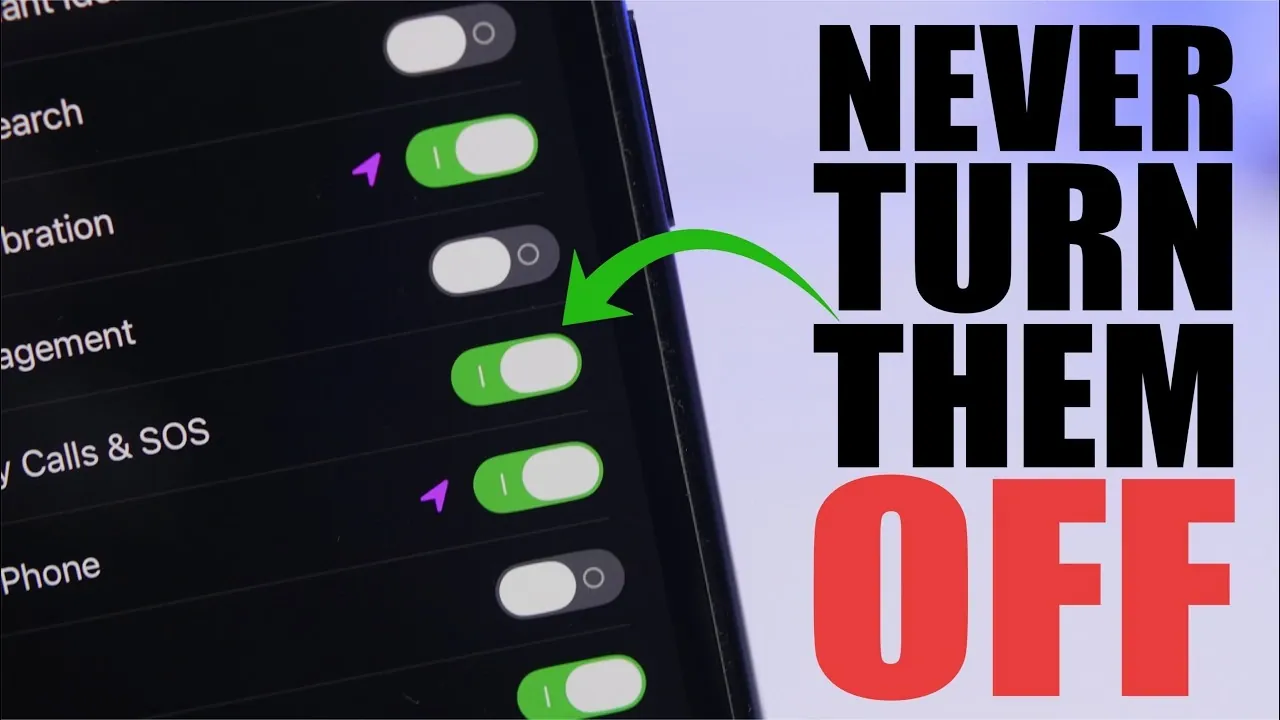
Your iPhone is more than just a communication device; it’s a sophisticated tool designed to enhance your daily life, protect your personal data, and ensure optimal performance. Certain settings are so essential that turning them off could compromise your device’s functionality, security, or overall usability. Below, iReviews explores ten critical iPhone settings you should always keep enabled and explains their importance in detail.

1. Face ID: Your First Line of Defense
Face ID is a cornerstone of your iPhone’s security system. By allowing the “Require Attention for Face ID” feature, your device ensures it only unlocks when you’re actively looking at it. This prevents unauthorized access, even in situations where someone might attempt to unlock your phone while you’re distracted or asleep. Beyond unlocking your device, Face ID also safeguards sensitive areas such as hidden and recently deleted photo albums, making sure your private data remains secure. Keeping this feature enabled is a simple yet powerful way to protect your personal information.
2. Location Services: Safety and Convenience
Location Services play a dual role in enhancing both security and functionality. Features like “Find My iPhone” and “Emergency Calls & SOS” rely on accurate location data to function effectively. For instance, allowing “Send Last Location” ensures your iPhone updates its location just before the battery dies, significantly increasing the chances of recovering a lost or stolen device. Additionally, Location Services improve navigation accuracy and enhance app functionality, making them indispensable for daily use. Whether you’re using maps for directions or apps that require location-based features, keeping this setting on ensures seamless performance.
3. Password Monitoring: Stay Ahead of Data Breaches
The “Detect Compromised Passwords” feature is a proactive tool that monitors your saved credentials for vulnerabilities. If any of your passwords are found in known data breaches, your iPhone will notify you immediately, allowing you to update them before they can be exploited. This feature significantly reduces the risk of unauthorized access to your accounts, protecting sensitive information such as financial details, personal emails, and social media profiles. By keeping this setting enabled, you can stay one step ahead of potential cyber threats.
4. iCloud: Your Backup and Recovery Lifeline
iCloud is an essential component of your iPhone’s ecosystem, offering seamless backup and recovery options. Features like “Find My iPhone” and “Send Last Location” are integral to locating a lost or stolen device. These tools allow you to track your iPhone remotely, lock it, or erase its data if necessary. Additionally, iCloud simplifies the process of transferring data when setting up a new device, making sure continuity and security. Keeping iCloud enabled not only protects your device but also ensures your data is always accessible when you need it most.
5. Optimized Battery Charging: Prolong Battery Health
Battery health is crucial for the long-term performance of your iPhone. The “Optimized Battery Charging” feature is designed to reduce battery wear by learning your daily charging habits. For example, it pauses charging at 80% overnight and completes it just before you wake up, minimizing the time your battery spends at full charge. This small adjustment can significantly extend your battery’s lifespan, making sure your device remains reliable over time. Allowing this feature is a practical step toward maintaining your iPhone’s performance and longevity.
6. Auto-Brightness: Save Power and Protect Your Eyes
Auto-Brightness is a simple yet effective feature that adjusts your screen’s brightness based on the surrounding light conditions. This not only conserves battery life but also reduces eye strain. For instance, your screen will dim in low-light environments and brighten in direct sunlight, making sure optimal visibility without requiring constant manual adjustments. By keeping Auto-Brightness enabled, you can enjoy a more comfortable viewing experience while also preserving your device’s battery life.
7. Automatic Time Setting: Stay Synchronized
The “Set Automatically” option under Date and Time ensures your iPhone always displays the correct time, even when you travel across time zones. Accurate time settings are essential for various functions, including app performance, calendar events and account logins. Disabling this feature could lead to missed appointments or disruptions in app functionality. By keeping this setting enabled, you eliminate the hassle of manual adjustments and ensure your device remains synchronized with the world around you.
8. SMS Fallback: Reliable Message Delivery
The “Send as Text Message” setting ensures your messages are delivered as SMS when iMessage isn’t available due to poor internet connectivity. This guarantees that important communications reach their recipients, regardless of network conditions. Whether you’re in a remote area with limited internet access or experiencing temporary connectivity issues, this feature ensures your messages are sent without delay. Keeping this setting enabled is a practical way to maintain reliable communication at all times.
9. Photos Privacy: Protect Your Memories
Your photo library often contains personal and sensitive information, making it a target for unauthorized access. By allowing Face ID for hidden and recently deleted albums, you add an extra layer of security to your most private memories. This ensures that even if someone gains physical access to your device, they won’t be able to view these albums without your authorization. Keeping this setting enabled is a straightforward way to protect your personal photos and videos from prying eyes.
10. Find My iPhone: Comprehensive Security
“Find My iPhone” is one of the most important security features on your device. It allows you to locate your iPhone, lock it, or erase its data remotely if it’s lost or stolen. Allowing “Send Last Location” enhances this feature by updating your device’s location just before the battery dies, significantly improving the chances of recovery. This comprehensive tool is indispensable for protecting your device and the personal information it contains. Keeping this setting enabled ensures you’re prepared for any eventuality.
These ten settings are designed to protect your iPhone, enhance its functionality and ensure a seamless user experience. By taking the time to review and enable these features, you can safeguard your device, protect your data and enjoy the full potential of your iPhone with confidence.
Here are more detailed guides and articles that you may find helpful on iPhone security settings.
Source & Image Credit: iReviews
Filed Under: Apple, Apple iPhone, Guides
Disclosure: Some of our articles include affiliate links. If you buy something through one of these links, Geeky Gadgets may earn an affiliate commission. Learn about our Disclosure Policy.
Credit: Source link