
USB-C promised simplicity, but has turned into a mystery box of different specs.
USB-C has markedly improved the way we use our devices. A single, universal connector type to rule them all, it’s now the de-facto standard for modern devices, capable of data transfer, power delivery and even video output. The latest and fastest generation of USB, USB4, is capable of bidirectional data transfer rates up to 80 gigabits per-second (Gbps). To put that in perspective, you can transfer a whopping 100 gigabytes in just over 10 seconds at that speed.
But don’t pick a USB-C equipped device up at random expecting it to have blazing fast speeds. USB-C is not a single specification. Rather, it is a wrapper for one of a number of different specifications, ranging from those that were around when the connector first debuted in 2014 to the latest standards in 2026. When picking up a USB-C device at random, you could end up with a powerful USB4 port, but you could also wind up saddled with a much slower USB 2.0 connection. Even the best USB-C hub we recommend in 2026 tops out at USB 3.1.
Apple recently gave us a perfect example of this unpredictability with its latest laptop, the MacBook Neo. The Neo is a budget device which bowed at $600 (it has since undergone a price hike to $700). To hit that competitive price point, Apple made some concessions, one of which was to include a weaker USB 2.0 port capable of only 480Mbps transfer rates alongside a somewhat stronger USB 3.2 Gen 2 port capable of 10Gbps. Nonetheless, both are visually identical USB-C ports.
So, how did this connector that looks so simple on the outside become so internally convoluted, and how can you determine the actual capabilities of your USB-C devices? Here’s what you need to know.
How USB-C got so messy

USB-C was meant to be simple. When it arrived in 2014, consumers were living through a Babel’s tower of connection standards. Your computers had USB Type-A, but your printer had Type-B, while your Android phone had one of two unique Micro USB ports. Meanwhile, your iPod had Apple’s 30-pin or Lightning connector, your camcorder may have had a barrel connector for charging. Video output needed DisplayPort or HDMI, and so on. It was a mess, and I suspect I’ve given some readers a war flashback by bringing it up.
USB-C was contrastingly simple. It was small enough to fit on any device, reversible so you could plug it in upside down, and it was an all-in-one solution for charging, data transfer, peripheral connectivity, and video output. One cable was all you’d need, and peace on earth would finally be achieved.
But that utopian vision was broken by two unavoidable facts: connectivity standards evolve and tech companies are parsimonious margin-crunchers. USB-IF, the consortium which implements USB standards, could not mandate that companies make their USB-C devices with the latest specs in mind, so a USB-C port or cable that could actually do everything the connector was capable of became exceedingly rare. Meanwhile, USB specification revisions became increasingly convoluted during the USB 3.x years, until we arrived at a point where USB 3.2 Gen 2×2 was twice as fast as the almost identically named USB 3.2 Gen 2. OEMs took advantage of the confusion to sell USB-C devices with generic USB 3 marketing language.
Other companies pushed out charging-only cables, or basic data cables that ran at outdated USB 2.0 speeds. If consumers couldn’t understand why their brand-new devices were transferring files so slowly or couldn’t output video, it was their problem, not the manufacturer’s.
How to figure out what your USB-C ports can do
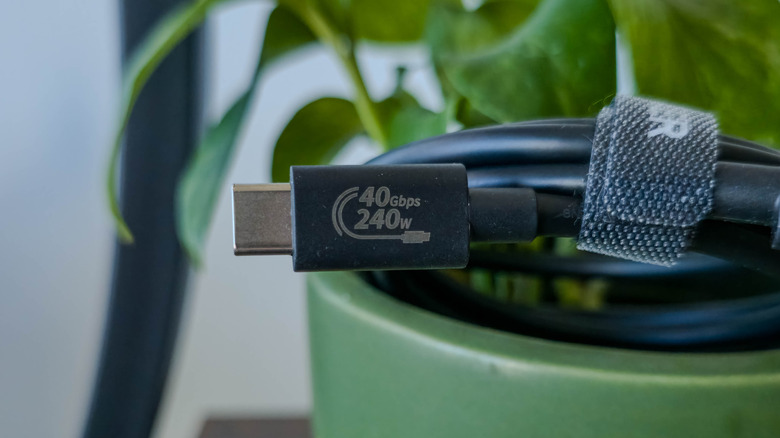
The way USB-C got so confusing is an interesting history for some, but what matters to you is figuring out what your USB-C ports and cables are actually capable of. The truth is that the promise of only needing a single cable for all your devices didn’t go unfulfilled. You just have to know what to look for.
If you’re lucky, a USB-C product will have its capabilities clearly labeled right on the cable or port. The USB-IF has simplified its branding, so USB-IF certified products can now clearly state, for example, “USB 80Gbps 240W” if the product supports the latest USB4 Version 2.0 spec revision.
However, many USB-C products are not USB-IF certified because companies don’t want to spend the time and money on certification processes. In most cases, you’ll need to pay close attention to the specs before you buy. If you’re buying a PC or laptop with multiple USB-C ports, you may need to go digging through documentation to find the precise capabilities of each one.
But what if it’s a device or cable you already own? If you can’t find its USB capabilities listed online, your best bet is simply to determine them yourself. If the port in question is on a Windows PC, you can check in Device Manager to see which USB generation it has. You can also test speeds empirically by connecting a high-speed portable SSD and transferring a large file, then watching the transfer speed as it copies over. As for video out, you’ll know pretty quickly that either your USB-C port or cable lacks Alt Mode functionality if you can’t get a video signal to show up on an external monitor or TV.
Credit: Source link