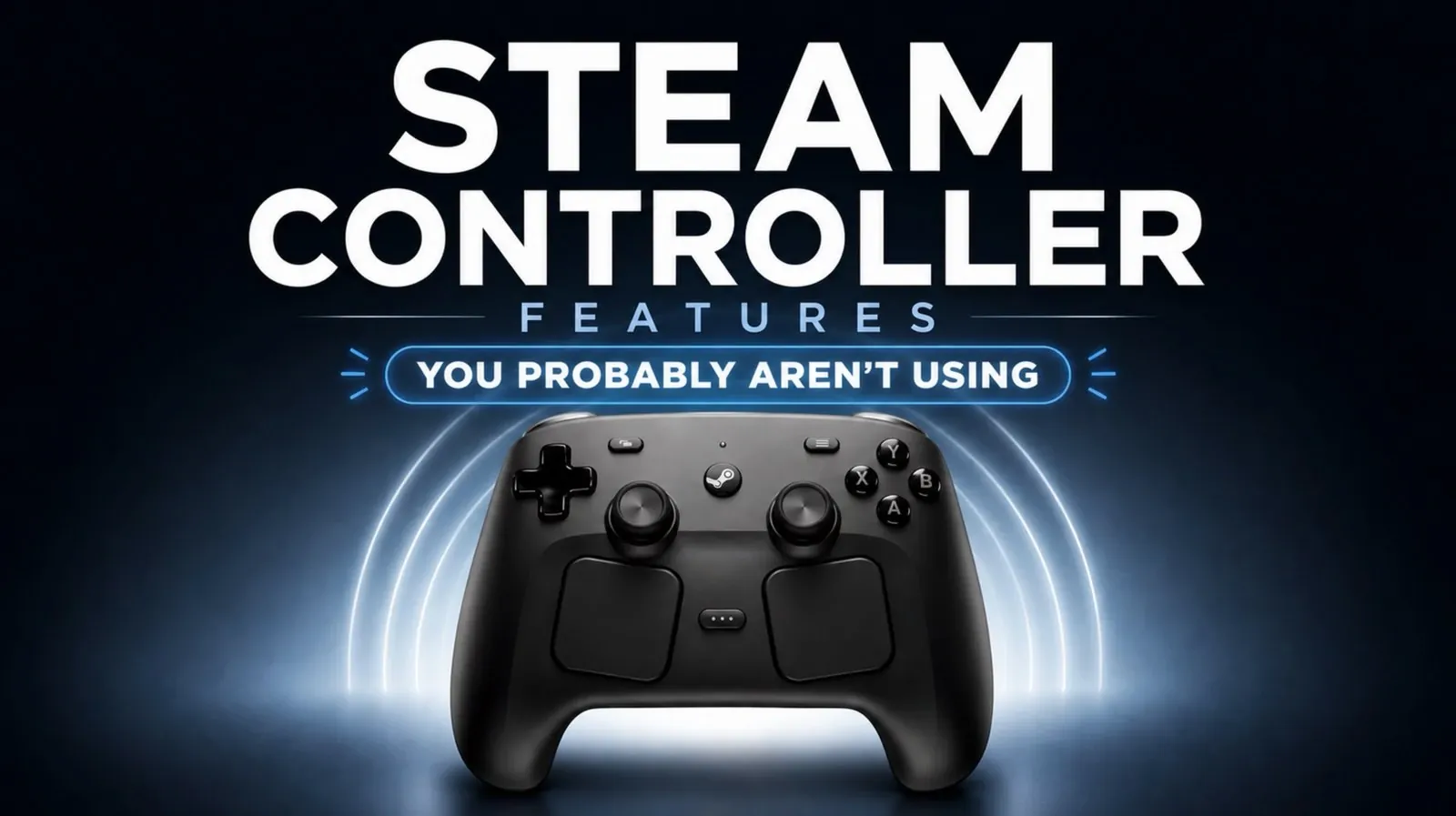
The Steam Controller stands out for its remarkable adaptability, offering gamers a host of features designed to cater to diverse playstyles. Among its standout capabilities are virtual menus, which allow you to assign multiple commands to a single input area, such as the trackpad. This feature is especially useful in games with intricate control schemes, allowing quick access to weapons, abilities, or inventory without breaking immersion. NerdNest explores how these menus can be customized for size, layout and sensitivity, making sure precise and efficient gameplay even in high-pressure moments.
Dive into this guide to uncover how you can switch seamlessly between action sets, configure input layers for context-sensitive controls and consolidate commands using multiple action bindings. You’ll also gain insight into fine-tuning advanced input settings like sensitivity and dead zones, making sure your controller performs exactly as intended. Whether you’re optimizing for competitive precision or creating a more intuitive setup for casual gaming, this breakdown offers practical steps to make the most of your Steam Controller’s potential.
Virtual Menus: Expanding Your Input Options
TL;DR Key Takeaways :
- The Steam Controller offers extensive customization options, including virtual menus, action sets, input layers and advanced input configurations, allowing gamers to tailor controls to their preferences for a more immersive experience.
- Virtual menus enable multiple commands to be assigned to a single input area, such as the trackpad, streamlining complex control schemes and enhancing gameplay efficiency.
- Action sets and input layers provide dynamic control configurations, allowing seamless transitions between different in-game scenarios without interrupting gameplay.
- Advanced input customization features, such as sensitivity adjustments, dead zones and multiple action bindings, ensure precision and flexibility, particularly in competitive or complex games.
- The trackpad’s customizable sensitivity and haptic feedback offer superior control and responsiveness, while built-in troubleshooting tools help resolve input issues and maintain optimal performance.
Virtual menus are a powerful feature that allows you to assign multiple commands to a single input area, such as the trackpad. This functionality is particularly beneficial for games with intricate control schemes, where quick access to various commands is crucial. For instance, you can configure a radial menu on the trackpad to switch weapons, activate abilities, or manage inventory seamlessly.
To optimize usability, you can adjust the size, layout and sensitivity of the virtual menu, making sure precise selection even during intense gameplay. Additionally, the ability to assign multiple virtual menus to the same trackpad provides even greater flexibility. This means you can switch between different menus as needed, eliminating the limitations imposed by the controller’s physical buttons. By using virtual menus, you can streamline complex commands and maintain focus on the game.
Action Sets and Input Layers: Adapting to Any Situation
Action sets and input layers are two features that enable dynamic control configurations, allowing you to adapt to different in-game scenarios without interrupting gameplay.
- Action Sets: These are entirely separate input configurations that you can switch between during gameplay. For example, you might create one action set for exploration and another for combat. Assigning a button or trigger to toggle between sets ensures smooth transitions, helping you stay immersed in the game.
- Input Layers: Input layers allow you to modify specific inputs within an existing action set temporarily. For instance, holding a trigger could change the functionality of the face buttons or trackpad, making it ideal for context-sensitive controls like stealth mechanics or vehicle handling.
Both features support inherited controls, meaning only the necessary inputs are altered while the rest remain consistent. This ensures that your control scheme remains intuitive and easy to use, regardless of the complexity of the game.

Here is a selection of other guides from our extensive library of content you may find of interest on Steam Controller.
Multiple Action Bindings: Streamlining Complex Commands
The Steam Controller’s support for multiple action bindings allows you to assign several commands to a single input, making it easier to execute complex actions. For example, you can configure a button to perform one action when pressed and another when released. This is particularly useful in games that require quick, sequential inputs, such as aiming and reloading.
You can also incorporate advanced input styles, such as double press or long press, to expand the functionality of a single button. For instance, a quick tap could trigger a jump, while holding the same button could initiate a dodge. By consolidating multiple commands into fewer inputs, you can maintain a clean and efficient control scheme, reducing the need for constant adjustments during gameplay.
Advanced Input Customization: Fine-Tuning for Precision
Advanced input customization is a key feature that ensures your Steam Controller responds exactly as intended. You can adjust settings such as sensitivity, dead zones and double-tap timing to minimize accidental inputs and improve accuracy. These adjustments are particularly important in competitive gaming, where precision can make the difference between victory and defeat.
The controller also allows for the layering of commands, allowing you to maximize the functionality of its limited buttons. If you encounter issues, the Steam Controller includes built-in troubleshooting tools. These tools let you test individual inputs, identify potential conflicts and reset the controller to its default settings if necessary. By fine-tuning your setup, you can achieve optimal performance across all your games.
Sensitivity Adjustments and Trackpad Customization
The trackpad is one of the Steam Controller’s standout features, offering a level of control that traditional joysticks cannot match. Its sensitivity can be customized to suit your preferences, whether you require rapid movements for fast-paced games or precise control for strategy or simulation titles.
In addition to sensitivity adjustments, you can customize the trackpad’s haptic feedback. This feature provides tactile confirmation of your inputs, enhancing your overall gaming experience by making interactions more intuitive and immersive. By tailoring the trackpad to your needs, you can unlock its full potential and enjoy a more responsive and engaging gameplay experience.
Troubleshooting Inputs: Solving Common Problems
If your Steam Controller’s inputs are not functioning as expected, its troubleshooting features can help you identify and resolve the issue. Begin by reviewing your configurations to check for any conflicting commands. You can also use the controller’s testing tools to verify the functionality of individual inputs.
If problems persist, resetting the controller to its default settings can provide a clean slate for further customization. This process is straightforward and ensures that any misconfigurations are cleared, allowing you to start fresh. By addressing input issues promptly, you can maintain a smooth and enjoyable gaming experience.
Maximizing Your Gaming Experience
The Steam Controller’s extensive customization options make it a powerful tool for gamers seeking to enhance their gameplay. By using features such as virtual menus, action sets, input layers and advanced customization tools, you can create a control scheme tailored to your specific needs. Whether you are navigating complex control schemes, adapting to different in-game scenarios, or fine-tuning inputs for precision, the Steam Controller enables you to take full control of your gaming experience.
Media Credit: NerdNest
Filed Under: Gaming News, Guides, Hardware
Disclosure: Some of our articles include affiliate links. If you buy something through one of these links, Geeky Gadgets may earn an affiliate commission. Learn about our Disclosure Policy.
Credit: Source link