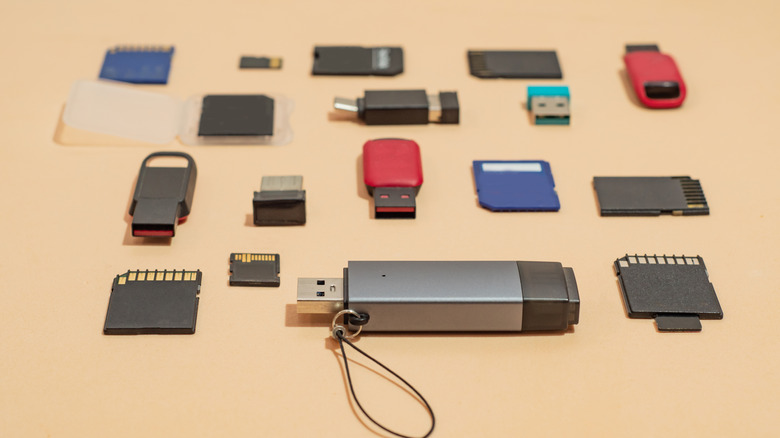
Deleting the files isn’t enough.
Given the current state of memory and storage prices, it might seem counterintuitive to even consider throwing away functional USB drives, but we all have a couple of old ones lying around that are either too slow or too limited in capacity to be particularly useful anymore. In such cases, it makes perfect sense to properly recycle or dispose of older storage drives. However, simply deleting the files stored on the drive isn’t enough to ensure your data is safely erased. All this does is mark the space that was occupied by the files as available for new data.
If your drive ever falls into the wrong hands, data recovery software could still succeed in restoring those deleted files. An old flash drive containing sensitive documents such as tax records or scanned IDs could turn into a privacy risk. A full format of the drive is therefore recommended. This takes much longer than a quick format because it scans the drive for bad sectors and overwrites existing data, making data recovery much more difficult.
If you want maximum peace of mind, though, you don’t need to stop at just a full format. Physical destruction of the drive is the safest option if you don’t intend to use it again. This is especially helpful if the drive you want to discard isn’t being recognized by your computer in the first place, preventing you from wiping its contents. Cornell University’s IT security guidance recommends that functional drives to be recycled should be overwritten three times, and those that are to be disposed of should be physically destroyed.
How to properly format a USB drive
You can format your hard drive or external SSD without any special software on both Windows and Mac computers. Start by connecting the drive, then ensure you have moved any important files you want to keep somewhere safe. On Windows, open File Explorer and navigate to This PC from the sidebar on the left. You should be able to see the connected drive in the Devices and drives section. Right-click on it and click on Format. A small window with a few options will pop open. Since you’re going to be discarding the USB drive anyway, you don’t need to worry about changing any settings here. Just be sure to leave the Quick Format option unchecked. Click Start and give it some time.
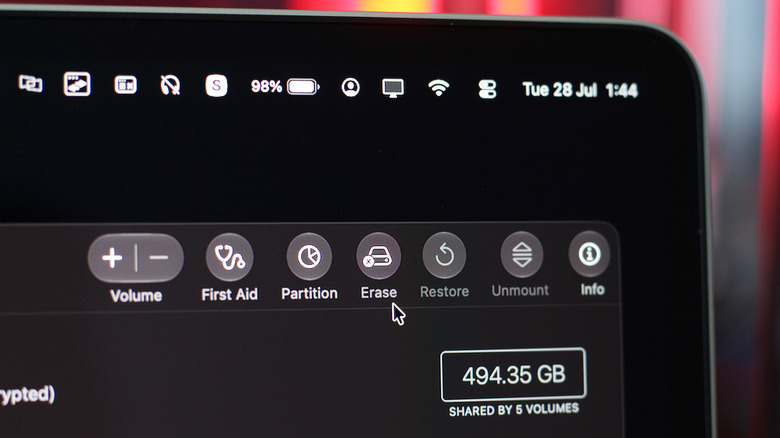
If you’re on a Mac computer, you can use a built-in service Apple offers to format connected drives. Open Finder and navigate to Applications > Utilities and launch Disk Utility. Select your drive from the sidebar on the left and click on the Erase button. For some storage types, macOS will let you expand the Security Options tab and select how many times you wish to overwrite the drive. Click on Erase to confirm the wipe and give the process some time to complete.
Safely destroying a storage drive
It’s worth noting that, even with a full wipe, formatting alone cannot guarantee that your data is unrecoverable. There are a few popular third-party utilities like DBAN and ShredOS that can perform overwrite passes to make data recovery difficult, but if you’re dealing with extremely sensitive data, physically destroying your drive before throwing it out remains the most secure option.
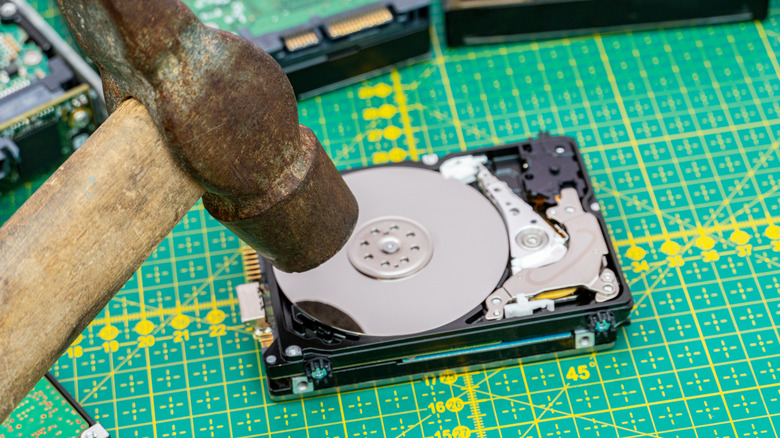
Mechanical hard drives are fairly easy to destroy. Grab a hammer and a nail, and punch through the hard drive casing. This will damage the platters that hold your data. If you’re dealing with SSDs or flash drives, you might have to put in a little more effort. Start by cracking open the enclosure to expose the memory chips. These are black, rectangular chips soldered onto the circuit board. iFixit recommends using a chisel, Dremel or drill to damage each of these memory chips on your USB drive.
Be extra careful when attempting to destroy any drive physically. Although HDDs and SSDs don’t contain any hazardous chemicals like batteries do, using tools to break them can send sharp metal and fiberglass fragments flying. With the drive safely wiped and destroyed, proceed to dispose of it. Many electronic retailers allow you to recycle your unwanted gadgets, or you can drop them off at a designated e-waste recycling facility.
Credit: Source link