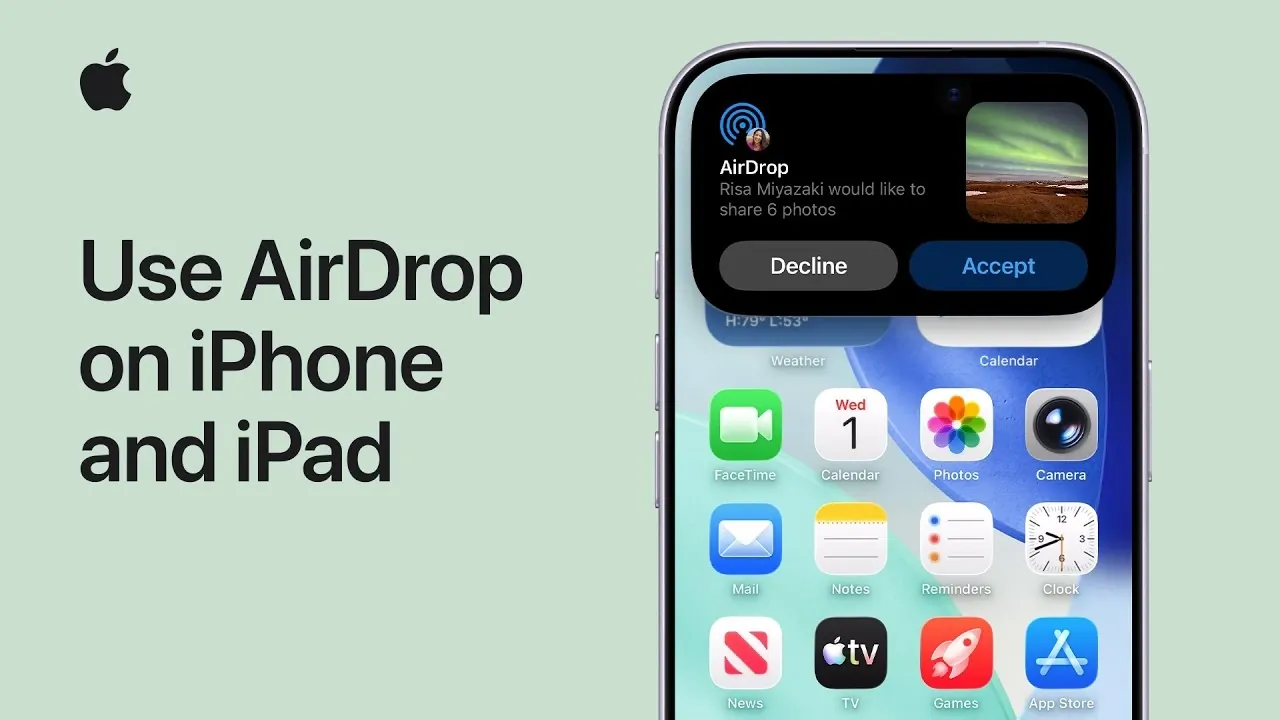
AirDrop is a highly efficient method for sharing files, photos, and videos between Apple devices. By using both Wi-Fi and Bluetooth, it allows for seamless transfers without requiring internet access or third-party applications. Whether you’re sharing with someone in your contacts or a new acquaintance, understanding how to set up and use AirDrop ensures a smooth, secure, and hassle-free experience. The video below from Apple gives us more details on how to use AirDrop.

Getting Started: Preparing Your Devices for AirDrop
Before initiating a file transfer, it’s crucial to prepare both devices to ensure AirDrop functions correctly. Follow these steps to set up your devices:
- Ensure both devices are within close proximity, as AirDrop relies on short-range wireless communication for file transfers.
- Activate Wi-Fi and Bluetooth on both the sender and recipient devices. These features are essential for establishing a connection.
- Disable the personal hotspot feature on both devices, as it can interfere with AirDrop’s connectivity and disrupt the transfer process.
Taking these preparatory steps helps establish a reliable connection and minimizes the risk of interruptions during file sharing.
Sharing Files with Contacts
Sending files to someone in your contacts is a straightforward process. Here’s how you can share files efficiently:
- Open the file you wish to share, such as a photo, video, or document.
- Tap the share button, which is represented by a square icon with an upward arrow.
- Select AirDrop from the list of sharing options that appear.
- Choose the recipient’s name from the “People” list displayed on your screen.
The recipient will receive a notification prompting them to tap “Accept.” Once they accept, the file will transfer and automatically open in a compatible app on their device. For instance, images will open in the Photos app, while documents may open in the Files app.
Sharing Files with Non-Contacts
When sharing files with someone who isn’t saved in your contacts, a few additional steps are required to ensure the transfer is successful:
- The recipient must adjust their AirDrop settings. They can do this by opening the Control Center and selecting “Everyone for 10 minutes” to temporarily allow file transfers from non-contacts.
- Open the file you want to share and tap the share button to access the sharing options.
- Select AirDrop and choose the recipient’s device from the list of available devices.
For devices running iOS 26.2 or later, the recipient will also need to enter an AirDrop code to confirm the transfer. This added layer of security ensures that only the intended recipient can receive the file, enhancing privacy and preventing accidental transfers.
What Happens After the Transfer?
Once the file transfer is complete, the recipient’s device will automatically open the file in a compatible app, provided one is available. For example:
- Photos and videos will open in the Photos app, allowing for immediate viewing or editing.
- PDFs, Word documents and other files may open in the Files app or another compatible application installed on the device.
If the recipient was added using an AirDrop code, their device will be temporarily stored in your “Known List” for 30 days. This feature simplifies future sharing by allowing quicker connections while maintaining a secure environment.
Device Compatibility and Software Requirements
AirDrop is supported on Apple devices running iOS 17 or later. This version introduced proximity-based sharing, which simplifies the process of locating nearby devices. For users with devices running iOS 26.2 or later, AirDrop codes add an extra layer of security, making sure that file transfers are both safe and intentional.
To access the latest features and maintain compatibility, it’s essential to keep your device updated with the most recent iOS version. Regular updates not only enhance functionality but also improve security, making sure a seamless experience when using AirDrop.
Maximizing the Benefits of AirDrop
AirDrop is a powerful tool for sharing files quickly and securely between Apple devices. By following the outlined steps, you can easily transfer files to both contacts and non-contacts. Features like AirDrop codes and proximity-based sharing enhance usability and security, making AirDrop an indispensable feature for Apple users.
With proper preparation and a clear understanding of its functionality, you can take full advantage of this seamless file-sharing tool. Whether you’re sharing photos with friends or transferring important documents, AirDrop ensures a reliable and efficient experience tailored to your needs.
Enhance your knowledge on AirDrop by exploring a selection of articles and guides on the subject.
Source & Image Credit: Apple Support
Filed Under: Apple, Apple iPad, Apple iPhone, Guides
Disclosure: Some of our articles include affiliate links. If you buy something through one of these links, Geeky Gadgets may earn an affiliate commission. Learn about our Disclosure Policy.
Credit: Source link