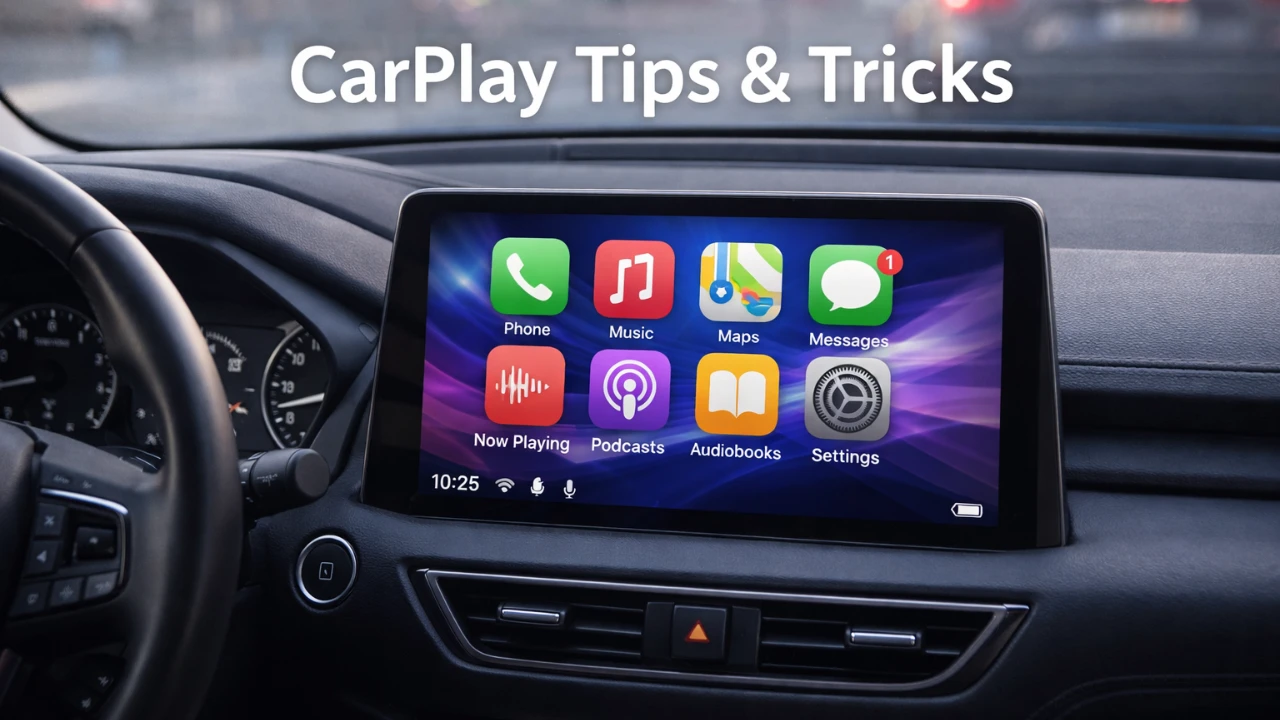
Apple CarPlay seamlessly integrates your iPhone’s features into your car’s infotainment system, offering a safer and more convenient driving experience. From navigation to music and hands-free communication, it enhances your time on the road. By using its capabilities effectively, you can make your drives safer, smoother, and more enjoyable. Here are ten practical tips to help you unlock the full potential of Apple CarPlay in a great new video from Proper Honest Tech.

1. Use Voice Control for Hands-Free Operation
One of the most powerful features of CarPlay is its voice control functionality, which allows you to interact with apps without taking your hands off the wheel. By activating Siri, you can issue commands such as “Play my road trip playlist” or “Call Sarah.” Siri can also read incoming messages aloud and let you dictate replies, making sure you stay connected while keeping your focus on the road. Using voice commands minimizes distractions and enhances safety, making it an essential tool for hands-free operation.
2. Respond to Messages with Emoji Reactions
CarPlay supports quick emoji reactions, also known as Tapbacks, in the Messages app. This feature allows you to acknowledge texts with simple reactions like a thumbs-up or a heart. While convenient, it’s important to use this feature sparingly to avoid unnecessary distractions. Prioritizing voice commands for messaging ensures safer communication while driving.
3. Switch to Google Maps Satellite View
If you prefer using Google Maps for navigation, allowing satellite view can provide a more detailed and visually rich experience. This feature is particularly helpful in unfamiliar areas or when identifying landmarks. To activate it, adjust the map settings in the Google Maps app on your iPhone before starting your drive. Satellite view enhances navigation clarity, making it easier to navigate complex routes.
4. Pin Your Favorite Apple Music Content
Apple Music users can pin frequently accessed albums, playlists, or artists for quick access through CarPlay. For instance, you can pin a playlist of your favorite driving songs, making sure it’s readily available without needing to search while on the move. This feature reduces distractions and keeps your music within easy reach, allowing you to focus on the road.
5. Streamline Tasks with Siri Shortcuts
Siri Shortcuts enable you to perform complex tasks with simple voice commands, enhancing CarPlay’s hands-free functionality. For example, you can say, “Get directions to work using Google Maps” or “What’s on my calendar today?” Customize these shortcuts in the Shortcuts app on your iPhone to suit your needs. Streamlining tasks with Siri Shortcuts improves efficiency, making your driving experience more productive and convenient.
6. Create Custom Music Stations
Discovering new music is effortless with CarPlay’s custom station feature in Apple Music. By selecting a song and creating a station based on it, you can enjoy a continuous stream of tracks tailored to your preferences. This feature is ideal for long drives when you want fresh, personalized music without interruptions. Custom stations ensure a dynamic listening experience, keeping your drives entertaining and enjoyable.
7. Personalize Your CarPlay Interface
Customizing the appearance of your CarPlay interface can make it more user-friendly and visually appealing. You can switch between light and dark modes, choose different icon layouts and even set custom wallpapers. These options allow you to create a display that matches your style and enhances usability. A personalized interface improves navigation and makes interacting with CarPlay more intuitive.
8. Reduce Distractions by Disabling Album Art
To help you stay focused, CarPlay offers the option to disable album art on the “Now Playing” screen. This reduces visual clutter and ensures your attention remains on the road. You can enable this feature in the CarPlay settings on your iPhone. Minimizing visual distractions enhances safety, especially during high-traffic or complex driving conditions.
9. Enable Navigation Alerts on Your Apple Watch
For added convenience, you can receive turn-by-turn navigation alerts on your Apple Watch. These alerts provide haptic feedback and visual cues directly on your wrist, complementing the directions displayed on your CarPlay screen. This feature is particularly helpful if you miss an audio prompt or need additional guidance. Using your Apple Watch for navigation alerts adds an extra layer of support, making sure you never miss a turn.
10. Quickly Activate Siri
Quick access to Siri is essential for hands-free assistance while driving. With CarPlay, you can summon Siri by long-pressing the home button on your car’s display or steering wheel. This allows you to perform tasks like sending messages, setting reminders, or checking the weather without taking your eyes off the road. Effortless Siri activation enhances hands-free functionality, making it easier to stay connected and informed.
Enhance Your Driving Experience with Apple CarPlay
Apple CarPlay is designed to combine convenience, safety, and personalization into your driving experience. By using features like voice control, Siri Shortcuts and custom display settings, you can tailor CarPlay to meet your specific needs. Whether it’s pinning your favorite playlists, exploring satellite navigation, or receiving navigation alerts on your Apple Watch, these tips will help you maximize its potential. Implement these strategies to make your daily commutes and road trips safer, smoother and more enjoyable.
Unlock more potential in Apple CarPlay by reading the previous articles we have written.
Source: Proper Honest Tech
Filed Under: Apple, Apple iPhone, Guides, Top News
Disclosure: Some of our articles include affiliate links. If you buy something through one of these links, Geeky Gadgets may earn an affiliate commission. Learn about our Disclosure Policy.
Credit: Source link