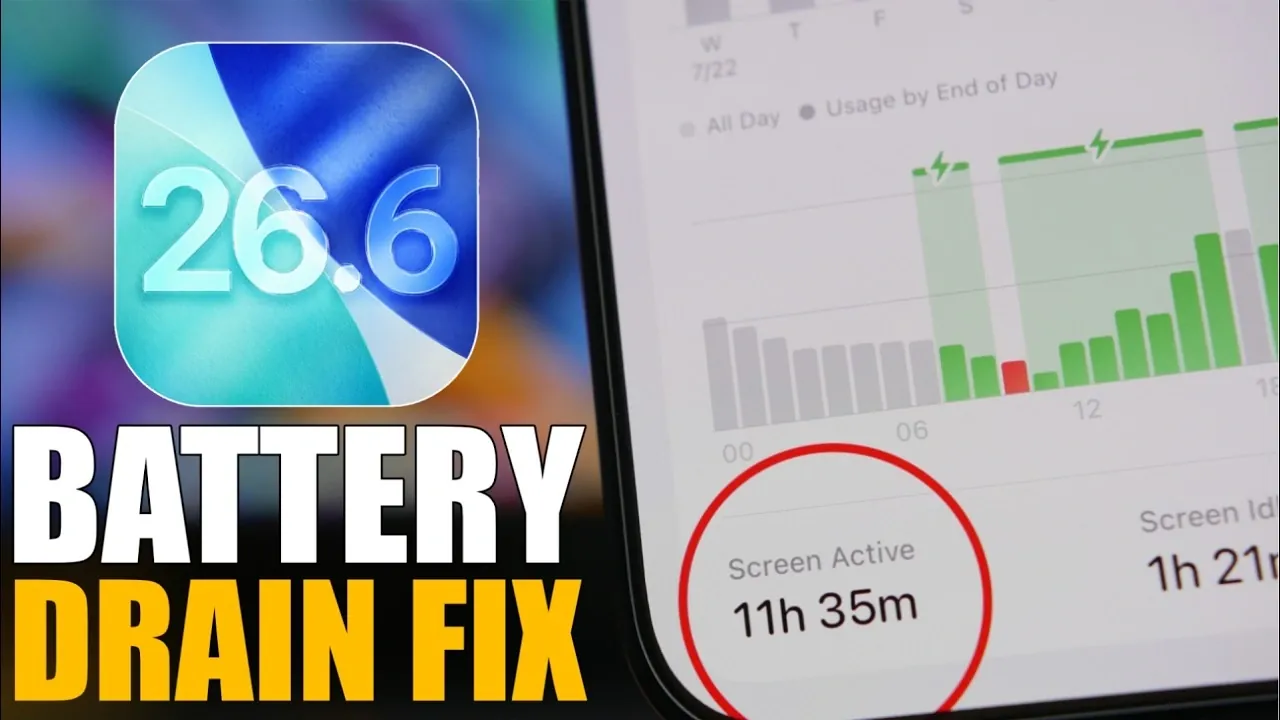
The release of iOS 26.6, while a minor update, has left many iPhone users noticing a decline in their device’s battery performance. This issue, though typically temporary, can disrupt daily activities and raise concerns about device efficiency. The update primarily serves as a preparatory step for the highly anticipated iOS 27, expected later this year. If you’re experiencing battery drain, there are several practical and effective strategies to help you optimize your iPhone and extend its battery life. The video below from iReviews gives us more details.

Understanding Battery Drain After Updates
Battery drain following an iOS update is a common occurrence and usually resolves itself within a few days. After installing iOS 26.6, your iPhone undergoes a stabilization period lasting approximately 4-5 days. During this time, background processes such as system indexing, app recalibration and other optimizations are actively running, which can temporarily increase power consumption.
To ensure your device operates efficiently, verify that you’ve installed the official release of iOS 26.6. If you were previously using a beta version, transitioning to the stable release is crucial, as beta versions often contain bugs that can exacerbate battery issues.
Steps to Optimize Battery Performance
If battery drain persists, there are several targeted adjustments you can make to improve your iPhone’s performance and conserve energy.
1. Manage Your Apps Effectively
Apps are frequently the primary cause of excessive battery usage. Taking control of how your apps operate can significantly reduce power consumption:
- Check Battery Usage: Navigate to Settings > Battery to identify which apps are consuming the most power. If certain apps are draining your battery excessively, consider uninstalling them or replacing them with more efficient alternatives.
- Update Apps: Ensure all your apps are updated to their latest versions. Updates often include bug fixes and optimizations that improve energy efficiency. You can update apps manually via the App Store or enable automatic updates for convenience.
2. Adjust Power-Draining Features
Certain iPhone features, while convenient, can have a significant impact on battery life. Modifying or disabling these features can help conserve energy:
- Siri Suggestions and Apple Intelligence: If you don’t rely on Siri Suggestions or Apple Intelligence features, consider turning them off in Settings to reduce background activity.
- Haptic Feedback: Adjust haptic feedback settings to minimize energy use. For instance, allowing haptics only in silent mode can save power while maintaining functionality.
- Always-On Display: For devices that support this feature, disabling the Always-On Display or simplifying its settings (e.g., removing wallpapers) can significantly reduce battery consumption.
3. Customize Your Home and Lock Screens
Your Home and Lock screens can also contribute to battery drain. Optimizing these areas can help extend battery life:
- Remove Widgets: Eliminate unnecessary widgets, particularly those that frequently update, such as weather, news, or stock market widgets.
- Manage Notifications: Disable notifications for non-essential apps or use the scheduled summary feature to limit interruptions and conserve energy.
4. Optimize Location Services
Location services are another common source of battery drain. Managing these settings effectively can make a noticeable difference:
- Turn Off Location Services: Disable location services entirely when they’re not needed to prevent unnecessary power usage.
- Restrict Location Access: Limit location access to essential apps only. For most apps, set location permissions to “While Using the App” and disable “Precise Location” unless absolutely necessary.
Practical Tips for Long-Term Battery Health
In addition to addressing immediate battery drain, adopting habits that promote long-term battery health can enhance your device’s performance over time:
- Avoid Extreme Temperatures: Keep your iPhone within its recommended temperature range to prevent battery degradation.
- Use Optimized Charging: Enable the Optimized Battery Charging feature in Settings to reduce battery wear during overnight charging.
- Reduce Screen Brightness: Lowering your screen brightness or allowing Auto-Brightness can help conserve energy throughout the day.
Preparing for iOS 27
By addressing battery drain issues now, you can ensure your iPhone is ready for the upcoming iOS 27 release. Allowing your device time to stabilize after updates and implementing targeted optimizations will not only improve your current experience but also enhance your device’s overall performance and longevity. These proactive measures will help you make the most of your iPhone, both now and in the future.
Here are additional guides from our expansive article library that you may find useful on iOS 26.6.
Source & Image Credit: iReviews
Filed Under: Android News, Guides, Mobile Phone News, Top News
Disclosure: Some of our articles include affiliate links. If you buy something through one of these links, Geeky Gadgets may earn an affiliate commission. Learn about our Disclosure Policy.
Credit: Source link