Go hands-free with voice commands.
If you’re looking for a way to convert your regular TV into a smart one, Roku’s hardware is among the easiest to recommend. Compared to other streaming devices, Roku’s options often come with clean user interfaces, tons of free channels and a price that makes them accessible to the masses. Every Roku streaming device also comes with its own remote control that lets you navigate the interface and control media playback on your favorite streaming services.
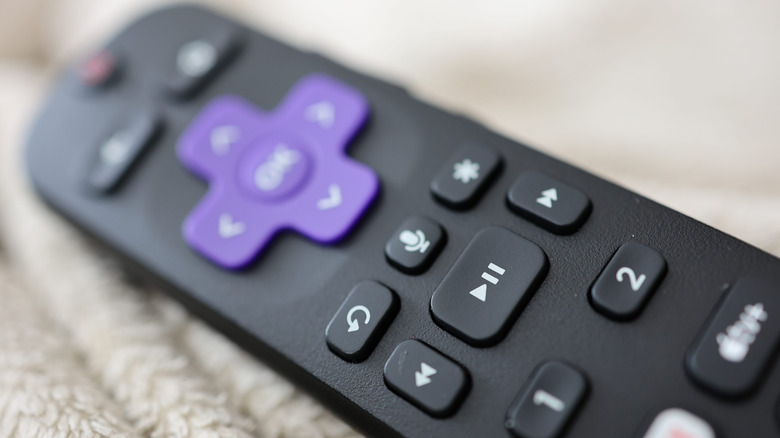
The remotes that ship with all current-gen Roku streaming players feature voice control, except for the one that comes with the Roku Streambar SE. You can check if your Roku remote is capable of sending voice commands — just look for a button with a microphone icon below the D-pad controls. Those who have upgraded their televisions with a streaming device will understand how annoying it can be to keep two remotes handy — one that controls the streaming device itself and another that handles basic TV functions like volume and source control.
If you own a Roku device you can use its remote as a universal controller for your TV and can even use voice commands to control it if it supports HDMI-CEC. You can check if your TV offers this functionality by diving into your TV’s settings menu and looking for an option that mentions HDMI-CEC. Many manufacturers use their own names for this feature, though. For instance, Samsung calls it Anynet+ and Sony labels it as Bravia Sync.
Setting up voice control using a Roku remote
To start using your Roku remote to control your TV’s functions, press the Home button on your Roku streaming device’s remote control. Navigate to Settings > Remotes & devices > Remotes, pick your Roku remote, and select the Set up remote for TV control option. This will start a quick setup process during which your Roku device will attempt to identify your TV’s brand and model. You’ll usually be asked to perform basic TV controls such as adjusting the volume, and may have to point the remote directly at your TV during this process.
If you own a Roku Voice Remote Pro and are unable to control your TV using voice commands, make sure your TV has the HDMI-CEC option turned on. Then, head to your Roku device’s settings and set up the voice remote again. If your Roku device is connected to a receiver, Roku recommends connecting it directly to your TV during the remote setup process, as it may help with identification.
With voice commands set up, you can say “Hey Roku” and ask your remote to turn your TV on, adjust its volume or turn it back off, without ever having to press a button. The Roku interface itself can be controlled using its AI-powered voice control that can help you launch apps, find content to play and even answer questions about what’s on the screen.
Credit: Source link