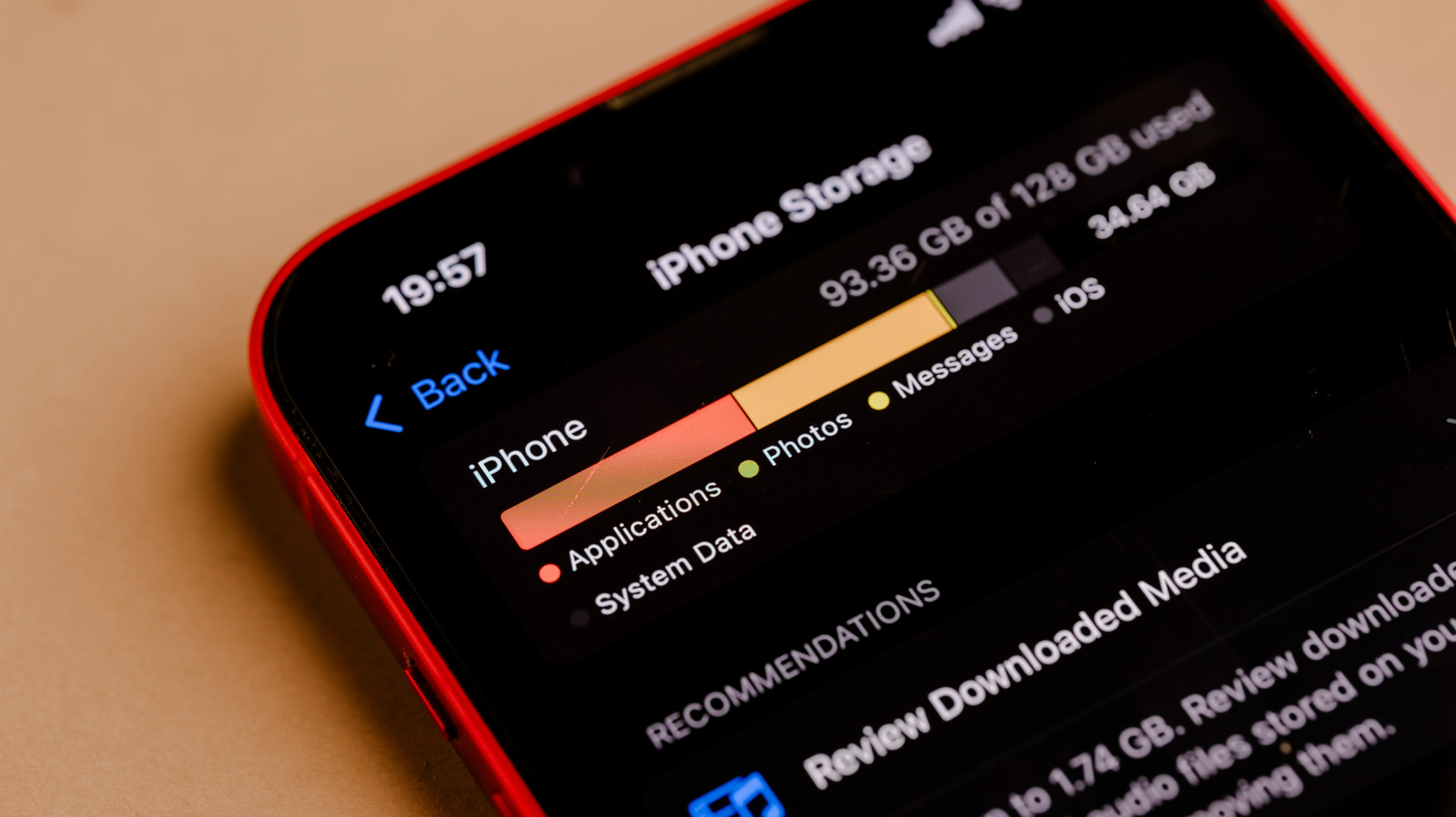
“Your iCloud storage is almost full.” You’ve probably received an email with those words at one time or another if you’ve used the same Apple account across several devices or if you’ve been an Apple user for years. That email from Apple will link you straight to a set of instructions on how to manage your storage and how to subscribe to iCloud+. If you really just want access to more iCloud storage than the 5GB you get for free, then you can simply pay for an iCloud+ subscription. But if you use Apple’s other services, you may want to consider Apple One, the company’s subscription services bundle.
What’s iCloud+ anyway?
First, let’s talk about what iCloud is. It’s Apple’s syncing service that automatically makes your photos, videos, files and notes available across devices. iCloud even backs up your device settings and app organization, which makes it easier to move from an older device to a newer one. It’s the reason you can go on your iPad and access the photos you’ve taken on your iPhone, provided you’ve used the same Apple ID for both of them. On non-Apple devices, you can log into the iCloud website and see your synced files and data.
iCloud+ expands your cloud storage allowance for Apple’s syncing service, and the subscription can be shared with up to five family members. It also gives you access to iCloud Private Relay, which hides your IP address and encrypts your web traffic on Safari. Its Hide My Email feature can generate random email addresses to keep your real one secure, and you’ll also be able to personalize your iCloud email address with a domain name you already own. It’s worth noting, however, that some questions have been raised over Hide My Email’s ability to actually protect your information.
How much do iCloud+ plans cost?
The cheapest iCloud+ plan will cost you $1 a month for 50GB. It comes with all the features we mentioned above, along with HomeKit Secure Video support for one camera. Cameras connected to HomeKit will store footage on iCloud, which you can then view anywhere.
For $3 a month, you’ll get 200GB of storage, all the features we mentioned, and HomeKit support for five cameras. $10 a month will give you access to 2TB of cloud storage, $30 a month to 6TB and $60 a month to 12TB. All plans that cost $10 and above come with HomeKit support for an unlimited number of cameras.
What about Apple One?
Meanwhile, Apple One bundles iCloud+ with the company’s other subscription services. For $20 a month, you’ll get access to 50GB of iCloud+ and all its features, along with access to Apple TV, Music and Arcade. The $26-a-month Family tier comes with all those services and 200GB of iCloud+ storage. To get 2TB of iCloud+ storage, all the aforementioned services, a subscription to Apple Fitness+ ($10 a month) and News+ ($13), you have to pay for the $38-a-month Premier plan. You can share both the Family and the Premier tiers with up to five family members.
So which should I choose?
A standalone iCloud+ plan is obviously the more affordable option between the two. If extra cloud storage is all you need, it’s definitely the better choice. You’ll even get all the extras that come with it. But if you’re paying for Apple’s other subscription services anyway, Apple One could save you money.
The $20 Apple One tier can save you $12, for instance, since the iCloud+ 50GB option costs $1 a month, Apple TV $13, Music $11 and Arcade $7. Individually, all those will cost you $32. The $38-a-month Premier plan will save you $32, because it comes with the 2TB iCloud+ plan that costs $10, TV, Music and Arcade, as well as the $10 Fitness+ and the $13 News+ subscriptions.
Simply put: Get an iCloud+ subscription if you only need extra storage so you can keep on accessing your latest photos, videos and files across devices. Choose Apple One if you’ve been paying for the company’s other subscription services.
Do I really need iCloud+? What happens if I stop paying?
iCloud+ is worth paying for if you have more than 5GB of content across devices, but you don’t need to pay for a subscription. In order to stay within the 5GB limit for free iCloud storage, however, you may have to do a lot of deleting.
Apple isn’t quite clear on what it will do to your data if you stop paying for iCloud+, but you won’t automatically lose everything as soon as you miss one payment. In its support pages, the company says if your files exceed your new plan’s storage capacity, iCloud will stop syncing your information. It will only start syncing and making backups again after you delete excess content or pay for more storage.
The company doesn’t explicitly state how long it will keep your iCloud data untouched. In iCloud’s terms and conditions, it says that if a device hasn’t backed up to iCloud for 180 days, Apple “reserves the right to delete any backups associated with that device.”
Here are some things you can do to get files off your iCloud, so you can either pay for a lower iCloud+ tier or cancel your subscription altogether:
- You can copy files directly to a Mac computer by accessing the iCloud Drive folder in the sidebar of a Finder window before deleting them from the cloud.
- You can also copy files to your phone. Open the Files app, tap the Browse menu and choose iCloud Drive under Locations. Tap the ellipsis button on the top right corner, then Select to pick the files you want to copy. Tap the ellipsis button on bottom right corner, tap Copy and then go to On My iPhone under Locations. Long press on your screen and tap Paste.
- It’s also possible to copy files on your iPad using the same steps above.
- You can also just go to the iCloud website, log in and copy files from there.
For photos and videos:
- Open the Photos app on your Mac and copy-paste them to your computer before deleting them from your iCloud.
- On a non-Apple device or computer, you can go to the iCloud website, click on the Photos app and then copy the images and videos you want to save.
- Connect an external storage device to your iPhone or iPad. Open Settings, tap your name, tap iCloud and then Photos. Select Download and Keep Originals. In the Photos app, select the photos and videos you want to copy, tap the Share button and then Export Unmodified Original. Tap your external storage under Locations and then Save.
Don’t forget that you can also delete Messages and emails with large files attached to them, as well as voice memos. You can also go to Settings > iCloud > iCloud Backup and then select a specific device under All Device Backups. From there, you can un-tick all the apps you don’t want backups of and delete their data from iCloud. Take note that you could lose automatic logins and saved preferences for the apps you choose. Once you’re done backing up and deleting files and photos, you can follow Apple’s instructions on how to downgrade or cancel iCloud+.
Credit: Source link