
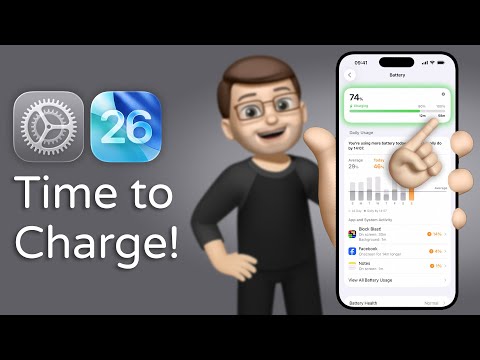
iOS 26 introduces a significant enhancement for iPhone users: charging time estimates. This feature provides precise information on how long it will take to charge your device to both 80% and 100%, whether you’re using a MagSafe charger or a Lightning cable. Accessible through the Battery section of the Settings app, this tool enables you to make smarter charging decisions, helping to extend your battery’s lifespan and optimize daily usage. By offering clear and actionable insights, iOS 26 ensures that managing your iPhone’s power becomes more intuitive and efficient. The video below from Jacob’s QuickTips gives us more details.
How iPhone Batteries Charge: The Basics
Understanding the mechanics of your iPhone’s lithium-ion battery is essential to appreciating the value of this new feature. Charging occurs in two distinct phases:
- Phase 1: Fast Charging to 80% – During this stage, the battery receives a high current, allowing it to charge rapidly. This phase is designed to provide a quick boost when your battery is low.
- Phase 2: Slower Charging to 100% – After reaching 80%, the charging process slows down significantly. This is a deliberate measure to prevent overheating and preserve the long-term health of your battery.
The second phase, which focuses on topping off the battery, takes longer than the initial fast-charging phase. iOS 26 uses this knowledge by offering separate time estimates for each stage, allowing you to decide whether to unplug early or wait for a full charge based on your needs.
MagSafe Charging: Enhanced Transparency
For users of MagSafe chargers, iOS 26 integrates charging time estimates directly into the interface. MagSafe technology ensures a secure connection and efficient charging, and now you can see exactly how long it will take to reach 80% or 100%. This added transparency makes MagSafe charging more practical and user-friendly.
This feature is particularly beneficial for planning your day. For example, if you notice that your iPhone will reach 80% in 20 minutes while you’re preparing for work, you can adjust your schedule accordingly. By providing this level of detail, iOS 26 caters to the fast-paced demands of modern life, making sure that you can manage your time effectively while keeping your device powered.
Cable Charging: Speed and Precision
For those who prefer cable charging, iOS 26 offers the same level of detailed insights. When using a Lightning cable, charging time estimates are displayed in the Battery section of the Settings app, allowing you to monitor the process with precision.
Cable charging often provides faster speeds compared to wireless options, especially when paired with a high-wattage adapter. With iOS 26, you can maximize this efficiency by planning your charging sessions more effectively. For instance, if you need a quick boost before heading out, you can determine whether cable charging will meet your needs within the available time. This feature ensures that you can make the most of your charging setup, whether you’re at home, in the office, or on the go.
Centralized Insights in the Settings App
The Battery section of the Settings app serves as a centralized hub for all charging-related information. This integration provides a comprehensive view of your device’s power usage and charging habits. Within this section, you can:
- View detailed charging time estimates for both 80% and 100%, helping you plan your charging sessions more effectively.
- Monitor your battery’s health and performance metrics, making sure that your device operates at peak efficiency.
- Access optimization settings designed to enhance battery longevity, such as allowing optimized charging to reduce wear over time.
By consolidating these features in one place, iOS 26 simplifies battery management, making it easier to adopt habits that preserve your device’s lifespan while making sure you always have the power you need.
80% vs. 100%: Making Informed Choices
One of the most practical aspects of iOS 26’s charging time estimates is its emphasis on the difference between charging to 80% and 100%. For most users, charging to 80% is sufficient for a full day of use, thanks to the energy efficiency of modern iPhones. Charging to 100%, while sometimes necessary, takes longer and can contribute to battery wear over time.
By clearly displaying the time required for each stage, iOS 26 helps you make informed decisions. For example, if you’re in a rush and see that reaching 80% will take 15 minutes while 100% will take 45 minutes, you can opt for the faster option without compromising your device’s performance. This level of insight encourages smarter charging habits, ultimately extending the lifespan of your battery and making sure that your iPhone remains reliable throughout the day.
Smarter Charging with iOS 26
The charging time estimation feature in iOS 26 represents a thoughtful addition to Apple’s suite of battery management tools. By providing clear and actionable insights, it enables you to optimize your charging habits, extend your battery’s lifespan, and make the most of your device. Whether you’re using a MagSafe charger, a Lightning cable, or exploring the Battery section of the Settings app, this feature ensures that managing your iPhone’s power is both intuitive and efficient. With iOS 26, staying informed about your battery’s status has never been more straightforward, allowing you to stay connected and productive with ease.
Unlock more potential in iOS 26 battery charging time by reading previous articles we have written.
Source & Image Credit: Jacob’s QuickTips for iPhone
Filed Under: Apple, Apple iPhone, Guides
Latest Geeky Gadgets Deals
Disclosure: Some of our articles include affiliate links. If you buy something through one of these links, Geeky Gadgets may earn an affiliate commission. Learn about our Disclosure Policy.
Credit: Source link