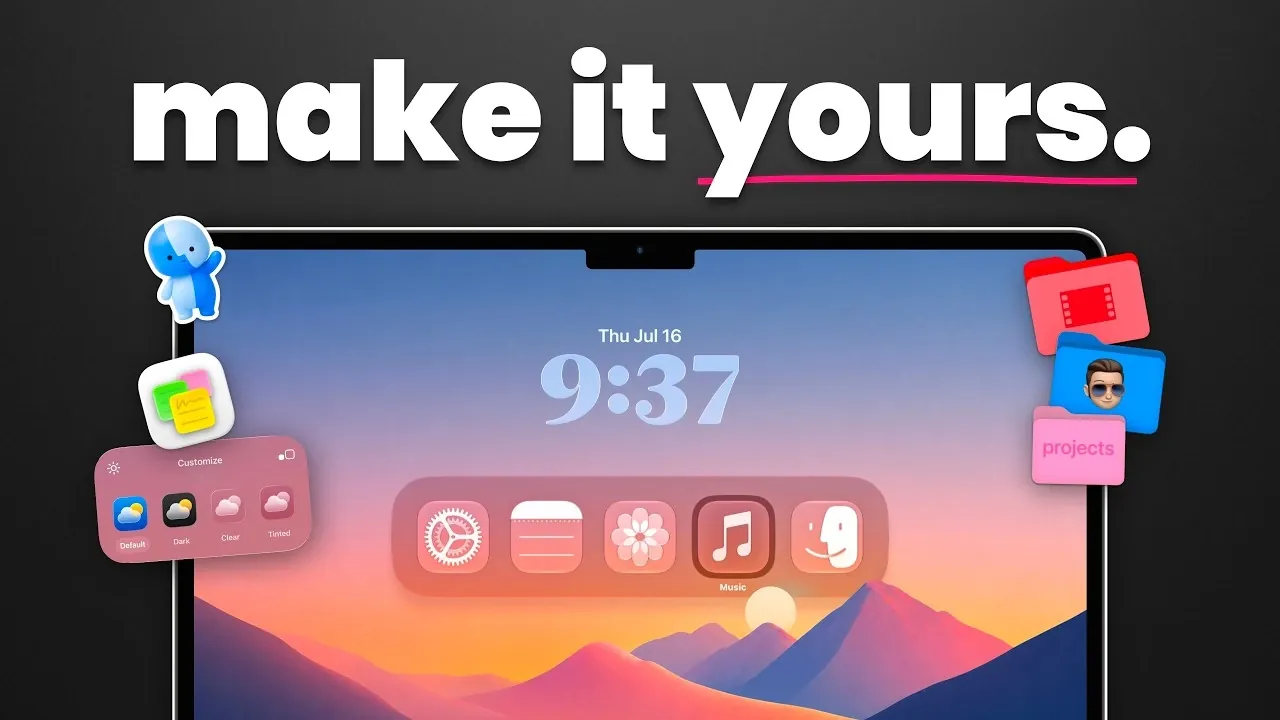
Does your Mac feel a little too generic? While macOS is celebrated for its sleek and professional design, it also offers a wide range of customization options to make your device truly unique. Whether you want to adjust its appearance, enhance its functionality, or explore advanced tools, macOS provides plenty of opportunities to tailor your experience. The video below from MacVince explores 21 ways to personalize your Mac, categorized into appearance settings, functional enhancements and advanced tools.

Appearance Settings
Customizing your Mac’s appearance is one of the simplest ways to make it feel more personal. These settings allow you to change the look and feel of your desktop with just a few clicks.
- Accent Colors: Select from a variety of accent colors to highlight menus, buttons and interface elements. Matching these colors with your wallpaper can create a cohesive and polished look.
- Highlight Colors: Adjust the text highlight color to suit your style, whether you prefer a subtle pastel or a bold, vibrant hue.
- Transparency Effects: Enable or disable transparency effects for menus and dock elements to achieve either a modern, layered aesthetic or a clean, minimalist appearance.
These settings are easily accessible through the System Settings menu, making them an excellent starting point for beginners looking to personalize their Mac.
Lock Screen Customization
Your lock screen is the first thing you see when you open your Mac, so customizing it can make your device feel more personal and functional.
- Custom Login Message: Add a motivational quote, a friendly reminder, or your contact information in case your Mac is misplaced.
- Clock Customization: Modify the font, size and style of the clock display to better align with your aesthetic preferences.
- Memoji Integration: Sync your Memoji with your lock screen and iCloud account for a playful and personalized touch that reflects your personality.
These changes not only enhance the visual appeal of your lock screen but also add practical functionality, making it both stylish and useful.
Wallpapers and Screen Savers
Refreshing your wallpaper or screen saver is one of the easiest ways to give your Mac a new look. macOS offers several built-in options, but third-party tools can take your customization to the next level.
- Dynamic Wallpapers: Use macOS’s built-in dynamic wallpapers that transition between light and dark modes based on the time of day, creating a seamless visual experience.
- Video Wallpapers: Apps like Umbra allow you to set high-quality video wallpapers, adding movement and depth to your desktop.
- Custom Screen Savers: Tools like Aerial let you create personalized screen savers using videos, photos, or animations, making sure your Mac looks great even when idle.
These options allow you to keep your Mac’s appearance fresh and engaging, whether you’re actively using it or stepping away for a moment.
Icon and Folder Personalization
Customizing icons and folders is a practical way to organize your desktop while adding a personal touch.
- Folder Icons: Change folder icons and colors to categorize your files visually. You can even add custom backgrounds to folders for a unique look.
- App Icons: Replace default app icons with custom PNG images to give your desktop a distinctive style. However, note that pre-installed app icons cannot be modified.
These adjustments not only enhance the aesthetic appeal of your workspace but also improve efficiency by making it easier to locate files and applications.
Widget Enhancements
Widgets provide quick access to essential information and macOS allows you to customize them to suit your needs.
- Default Widgets: Edit built-in widgets to display interactive content such as contacts, photo collages, or calendar events.
- Third-Party Widgets: Apps like Locker and Widget Wall offer advanced customization options, including unique layouts, themes and additional functionality.
By tailoring your widgets, you can create a dashboard that keeps you informed and productive at a glance, making your Mac more efficient and user-friendly.
Advanced Customization Tools
For users who want to go beyond the basics, advanced tools unlock a range of possibilities for personalizing your Mac.
- Video Wallpapers and Retro Themes: Specialized apps provide unique themes and dynamic wallpapers that go beyond macOS’s default options, offering a more immersive experience.
- App Launchers: Streamline your workflow with customizable app launchers that provide quick access to your most-used programs, saving time and effort.
- Media Player Customization: Adjust the appearance and functionality of media players to better suit your preferences, enhancing your overall user experience.
These tools allow you to push the boundaries of macOS customization, creating a truly unique and tailored experience.
Limitations to Consider
While macOS offers extensive customization options, there are some limitations to keep in mind:
- Custom folder icons and other changes may not sync across devices via iCloud, which could affect consistency if you use multiple Macs.
- Pre-installed app icons cannot be replaced, limiting your ability to fully customize the dock and certain system apps.
Understanding these constraints ensures you can make informed decisions about your customization efforts and avoid potential frustrations.
Personalizing Your Mac
Customizing your Mac is about more than just aesthetics, it’s about creating a workspace that reflects your personality and enhances your productivity. From simple tweaks like accent colors and lock screen messages to advanced tools for dynamic wallpapers and app launchers, macOS provides a wealth of options to make your device truly your own. By exploring these 21 customization ideas, you can transform your Mac into a device that’s as unique and functional as you are.
Enhance your knowledge on Mac customization by exploring a selection of articles and guides on the subject.
Source & Image Credit: MacVince
Filed Under: Apple, Guides
Disclosure: Some of our articles include affiliate links. If you buy something through one of these links, Geeky Gadgets may earn an affiliate commission. Learn about our Disclosure Policy.
Credit: Source link