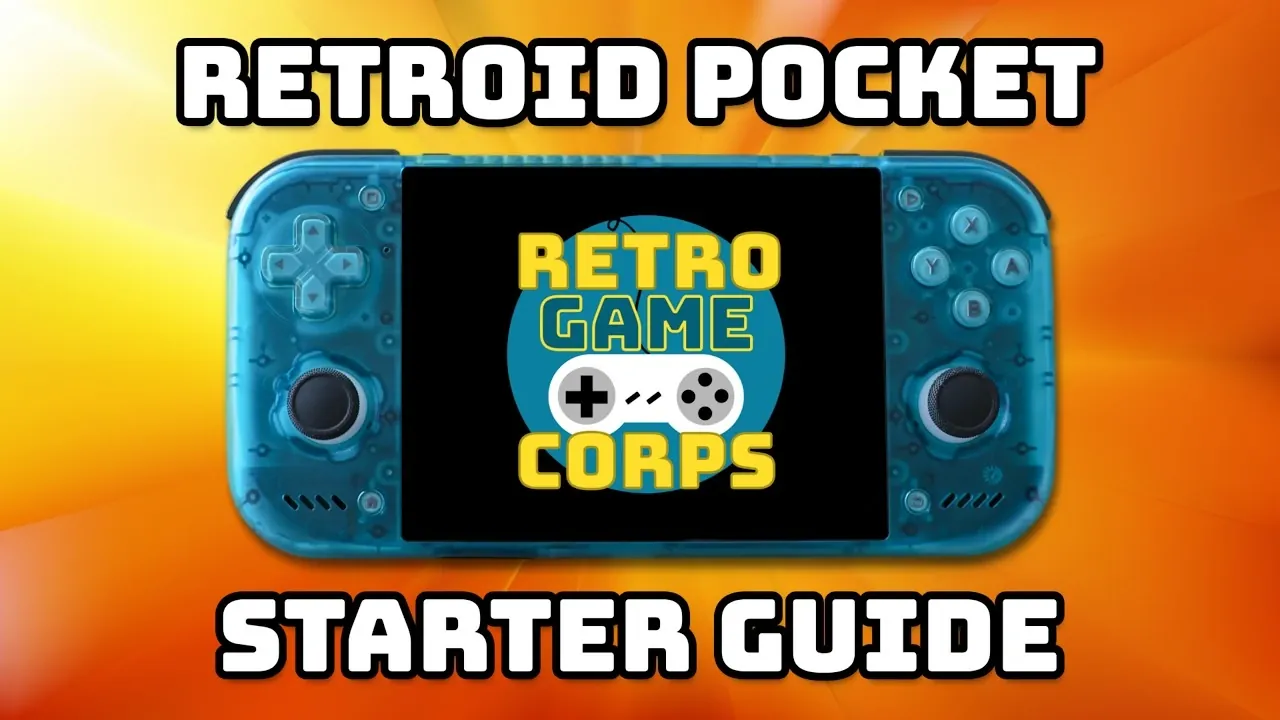
The Retroid Pocket Nova is a compact handheld device designed for retro gaming enthusiasts, combining Android functionality with gaming-specific features. Retro Game Corps outlines key steps to get started, such as choosing between the Nova Launcher or the default AOSP launcher and configuring essential Android settings like display timeout and controller mapping. Another important setup step includes organizing game files into system-specific folders, which ensures smoother emulator performance and easier navigation.
Dive into installing and configuring emulators like RetroArch for multi-system compatibility, Dolphin for GameCube and Wii games and ARM SX2 for PS2 titles. Learn how to set up a front-end launcher like Emulation Station Desktop Edition (ESDE) to create a console-like interface with themes and metadata for your game library. Additionally, explore advanced options such as audio adjustments using James DSP and allowing cloud save syncing to safeguard your progress.
TL;DR Key Takeaways :
- The Retroid Pocket Nova is an Android-based handheld gaming device designed for retro gaming, offering customizable settings and a gaming-focused interface via the Nova Launcher.
- Efficient storage management is essential, with support for internal storage and high-speed microSD cards and organized file structures improve emulator performance.
- Installing emulators like RetroArch, Dolphin and ARM SX2, along with utilities like O2P Tweaks, enhances gaming performance and customization options.
- Setting up a front-end launcher like Emulation Station Desktop Edition (ESDE) creates a console-like interface with organized libraries, themes and metadata scraping.
- Advanced features such as Game Native, cloud save syncing and audio enhancements like James DSP elevate the gaming experience for both retro and modern titles.
Getting Started: Initial Setup
When you power on your Retroid Pocket Nova for the first time, you’ll need to configure its basic settings to ensure smooth operation. Follow these steps to get started:
- Select your preferred language to personalize the interface.
- Connect to a reliable Wi-Fi network for updates and downloads.
- Set the correct time zone to synchronize system functions.
- Log in to your Google account to enable Google Play services for app and emulator downloads.
After completing these steps, you’ll be prompted to choose between the Retroid Pocket Nova Launcher and the default AOSP launcher. The Nova Launcher offers a streamlined, gaming-focused interface, while the AOSP launcher provides a more traditional Android experience. Adjust additional Android settings, such as display timeout, notification preferences and security options, to suit your needs. Explore device-specific settings like charging limits and controller configurations to further customize your Nova.
Managing Storage
Efficient storage management is crucial for organizing your games and files. The Retroid Pocket Nova supports both internal storage and expandable microSD cards, allowing you to accommodate larger game libraries. For optimal performance, it is recommended to use a high-speed microSD card.
To transfer files to your device, you can:
- Connect your Nova to a PC via USB and copy files directly.
- Download files directly onto the Nova using its browser or dedicated apps.
Organize your files into system-specific folders, such as NES, SNES, GameCube and PS2, to simplify navigation and emulator setup. This structure not only improves usability but also ensures smoother emulator performance.

Here is a selection of other guides from our extensive library of content you may find of interest on retro gaming.
Installing Apps and Emulators
The Optanium app serves as a central hub for installing emulators and utilities on the Retroid Pocket Nova. It provides access to a curated selection of emulators for systems like PS2, GameCube, Wii and Nintendo DS. Popular emulator choices include:
- RetroArch: A versatile multi-system emulator that supports a wide range of consoles.
- Dolphin: Ideal for GameCube and Wii games, offering excellent compatibility and performance.
- ARM SX2: Optimized for PS2 emulation, delivering smooth gameplay for demanding titles.
In addition to emulators, consider installing utilities like O2P Tweaks for audio enhancements and performance optimizations. These tools allow you to fine-tune your device, making sure the best possible gaming experience.
Organizing Game and BIOS Files
Proper file organization is essential for smooth emulator performance and ease of use. Create system-specific folders for your ROMs, such as:
Some emulators require BIOS files to function correctly. Check the emulator’s documentation to confirm which BIOS files are needed and where to place them. Proper organization not only improves usability but also minimizes compatibility issues, making sure a seamless gaming experience.
Configuring Emulators
Each emulator offers unique settings to enhance your gaming experience. Here’s how to get started with some of the most popular options:
- RetroArch: Configure shaders, hotkeys and retro achievements. Adjust controller mappings and visual settings to suit your preferences.
- Dolphin (GameCube/Wii): Optimize resolution, frame rate and controller input for smooth gameplay.
- ARM SX2 (PS2): Adjust graphics and performance settings to handle demanding titles effectively.
- Melon DS (Nintendo DS) and Azahar (3DS): Configure touch input and screen layouts for dual-screen systems.
- SEMU (Wii U) and Eden (Nintendo Switch): Fine-tune settings for newer systems to achieve optimal performance.
Experiment with these settings to find the best balance between performance and visual quality for your favorite games.
Setting Up a Front-End Launcher
To create a console-like interface, install Emulation Station Desktop Edition (ESDE) as your primary front-end launcher. ESDE offers several features to enhance your gaming experience:
- Organize your game library for easy navigation.
- Add themes to personalize the interface.
- Scrape metadata to display box art, descriptions and videos for your games.
Once configured, set ESDE as the default home launcher. This transforms your Retroid Pocket Nova into a user-friendly gaming console, making it easier to browse and launch your games.
Enhancing Audio
For an improved audio experience, install James DSP through O2P Tweaks. This tool provides advanced sound customization options, including:
- Equalizer adjustments to fine-tune audio output.
- Stereo widening for a more immersive soundstage.
- Additional audio enhancements to improve clarity and depth.
Experiment with different configurations to find the optimal sound profile for your games. Whether you’re playing retro classics or modern titles, enhanced audio adds a new layer of immersion to your gaming sessions.
Exploring Advanced Features
The Retroid Pocket Nova includes several advanced features to elevate your gaming experience. These include:
- Game Native: Stream or run native PC games directly on your device for a broader gaming library.
- Customize gameplay by adding mods, cheats and custom configurations for specific games.
- Enable cloud save syncing to back up your progress and access it across multiple devices.
These features make the Nova a versatile tool for both casual and dedicated gamers, offering flexibility and convenience.
Maximizing Your Retroid Pocket Nova
The Retroid Pocket Nova is a powerful handheld device that bridges retro gaming and modern Android functionality. By following this guide, you can set up and optimize your device for maximum performance and usability. From emulator installation and file management to front-end launcher configuration and audio enhancements, each step contributes to a polished and enjoyable gaming experience. With the right tools and settings, the Retroid Pocket Nova becomes a versatile and user-friendly retro gaming console, ready to deliver countless hours of entertainment.
Media Credit: Retro Game Corps
Filed Under: Gaming News, Guides
Disclosure: Some of our articles include affiliate links. If you buy something through one of these links, Geeky Gadgets may earn an affiliate commission. Learn about our Disclosure Policy.
Credit: Source link