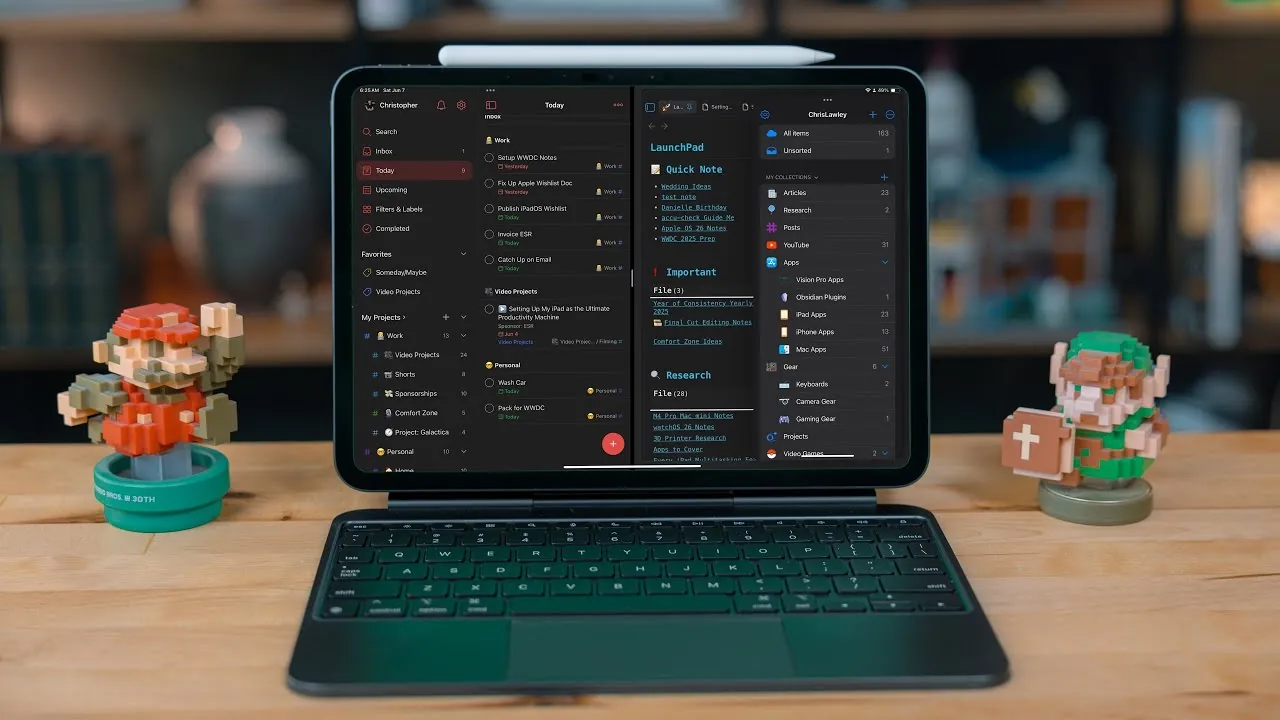
The iPad is more than just a tablet—it is a versatile and powerful tool that can significantly enhance the way you work, create, and stay organized. By understanding its features and optimizing its settings, you can transform your iPad into a productivity hub. Whether you are managing tasks, collaborating with others, or creating content, mastering these tips and techniques will help you maximize your device’s potential. The video below from Christopher Lawley gives us more details.

Maximizing Multitasking Features
The iPad’s multitasking capabilities are designed to help you handle multiple tasks efficiently, making it easier to stay productive. Features like Split View and Slide Over allow you to work with multiple apps simultaneously, streamlining your workflow.
- Split View: This feature lets you display two apps side by side. For instance, you can draft an email while referencing a document or browse the web while taking notes.
- Slide Over: Open a floating app window for quick tasks, such as replying to a message, checking your calendar, or setting a reminder.
To activate these features, drag an app from the Dock into your workspace for Split View or swipe from the right edge of the screen to open Slide Over. Familiarizing yourself with these gestures ensures seamless multitasking and helps you complete tasks more efficiently.
Streamlining Navigation with Keyboard Shortcuts and Gestures
Efficient navigation is essential for saving time and maintaining focus. The iPad offers a variety of keyboard shortcuts and gestures that can simplify your workflow and make navigation more intuitive.
- Keyboard Shortcuts: If you use an external keyboard, shortcuts like Command + Tab (to switch between apps) and Command + Space (to open Spotlight Search) can help you perform repetitive tasks faster.
- Gestures: Use intuitive movements such as swiping up with three fingers to access the App Switcher or pinching with five fingers to return to the Home Screen.
Incorporating these shortcuts and gestures into your daily routine can significantly improve your efficiency, allowing you to focus more on your work and less on navigating your device.
Organizing Apps and Files for Quick Access
A well-organized iPad is key to staying productive and minimizing distractions. By structuring your apps and files, you can quickly locate what you need and maintain a clutter-free workspace.
- App Organization: Group similar apps into folders, such as productivity, entertainment, or communication. Place your most frequently used apps in the Dock for instant access.
- File Management: Use the Files app to create clearly labeled folders for your documents. Cloud storage services like iCloud, Google Drive, or Dropbox allow you to access files across devices while keeping them secure.
This structured approach not only saves time but also reduces the mental load of searching for apps or files, helping you stay focused on your tasks.
Exploring Built-In Tools and Apps
Your iPad comes preloaded with a range of powerful tools and apps that can enhance your productivity without requiring additional downloads. These built-in features are designed to help you manage tasks, stay organized, and create content effectively.
- Notes and Reminders: Use these apps to jot down ideas, create to-do lists, or set reminders for important tasks.
- Calendar: Keep track of your schedule with event reminders and shared calendars for better time management.
- Safari: Features like tab groups and the reading list make web browsing more efficient and organized.
- Markup: Annotate PDFs or images directly for quick edits, feedback, or note-taking.
- Pages and Keynote: Create professional-quality documents and presentations with ease.
By fully using these built-in tools, you can accomplish a wide range of tasks without relying on third-party apps, making your iPad an all-in-one productivity solution.
Seamlessly Integrating with Other Devices
One of the iPad’s standout features is its ability to integrate seamlessly with other Apple devices, creating a unified and efficient ecosystem. This integration allows you to transition between devices effortlessly and enhances your overall productivity.
- Handoff: Start a task on your iPad and continue it on your iPhone or Mac without losing progress.
- Universal Clipboard: Copy text, images, or files on one device and paste them on another for a smoother workflow.
- Apple Pencil: Use this tool for note-taking, drawing, or annotating documents, adding precision and creativity to your work.
- Accessories: Pair your iPad with the Magic Keyboard, an external monitor, or other accessories to create a more versatile and efficient setup.
These integrations not only streamline your workflow but also make it easier to manage tasks across multiple devices, making sure you stay productive no matter where you are.
Enhancing Functionality with Third-Party Apps
While the iPad’s native features are robust, third-party apps can further enhance its functionality and tailor it to your specific needs. These apps are designed to complement the iPad’s capabilities and provide advanced tools for productivity, creativity, and collaboration.
- Project Management: Apps like Notion and Trello help you organize tasks, manage projects, and collaborate with teams effectively.
- Note-Taking: Tools like GoodNotes and Notability offer advanced features for capturing, organizing, and sharing ideas.
- Creative Work: Apps like Procreate and Affinity Designer provide professional-grade tools for design, illustration, and digital art.
Selecting apps that integrate well with your workflow and support cloud synchronization ensures your data is always accessible, making your iPad an even more powerful tool.
Customizing Settings for a Tailored Experience
Personalizing your iPad’s settings can significantly enhance your productivity and ensure the device meets your unique needs. By customizing features like Focus Modes, the Control Center, and Siri Shortcuts, you can create a tailored experience that aligns with your goals.
- Focus Modes: Reduce distractions by setting up customized modes for work, study, or personal time, allowing you to concentrate on what matters most.
- Control Center: Add shortcuts for frequently used tools, such as screen recording, Do Not Disturb, or brightness adjustments, for quick access.
- Siri Shortcuts: Automate repetitive tasks, such as sending pre-written emails, launching specific app combinations, or setting reminders.
These adjustments not only improve efficiency but also make your iPad more intuitive and enjoyable to use, helping you stay focused and productive throughout the day.
Below are more guides on iPad productivity tips from our extensive range of articles.
Source & Image Credit: Christopher Lawley
Filed Under: Apple, Apple iPad, Guides
Latest Geeky Gadgets Deals
Disclosure: Some of our articles include affiliate links. If you buy something through one of these links, Geeky Gadgets may earn an affiliate commission. Learn about our Disclosure Policy.
Credit: Source link