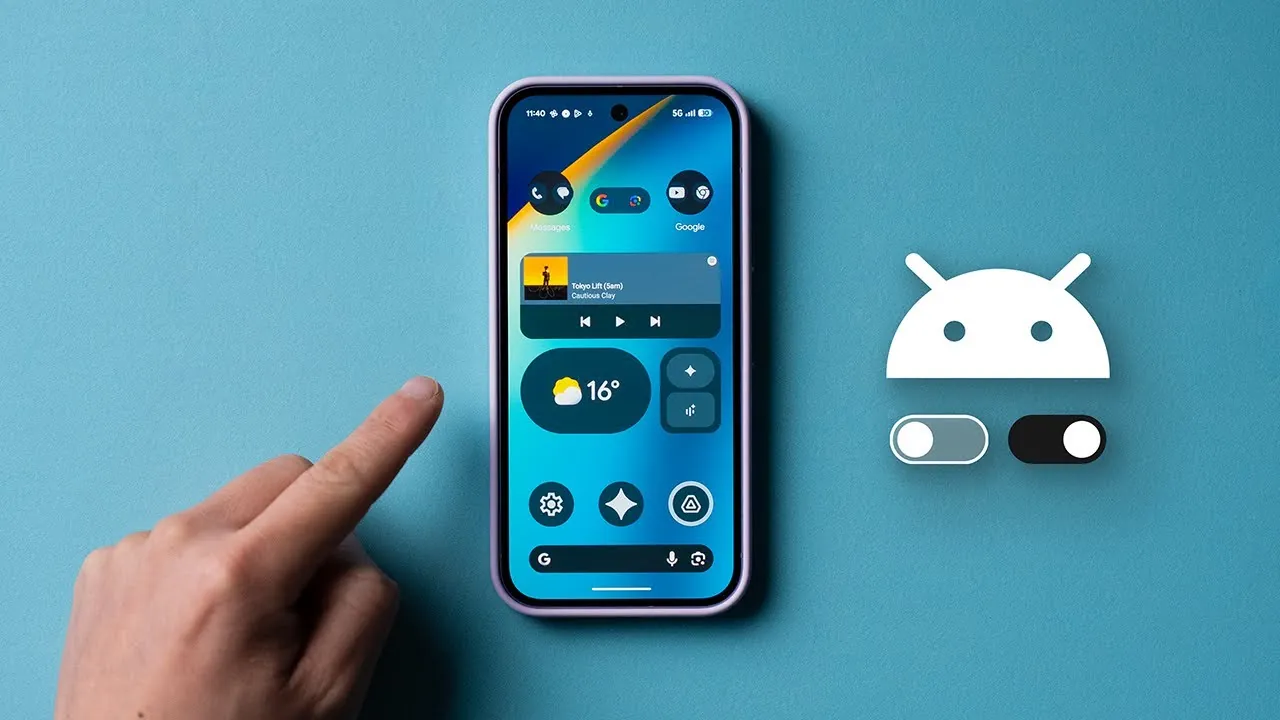
The Google Pixel 10, powered by Android 16, is a feature-rich smartphone designed to deliver a seamless and personalized user experience. However, to truly unlock its potential, it’s important to adjust certain settings right from the start. These changes will help you optimize performance, enhance usability, and strengthen security, making sure your device is tailored to your needs. The video below from Andrew Ethan Zeng gives us more details on the settings you need top change.

Battery Optimization
Battery life is a critical aspect of any smartphone, and the Pixel 10 offers several tools to help you manage power consumption effectively. Adjusting these settings will ensure your device lasts longer and remains efficient:
- Enable the 80% charge limit: Prolong your battery’s lifespan by capping charging at 80%. This feature reduces long-term wear and keeps your battery healthier over time.
- Display battery percentage: Activate this option to monitor your remaining battery life with precision, helping you plan your usage and avoid unexpected shutdowns.
- Use adaptive connectivity: Conserve power by allowing the device to intelligently switch between 4G and 5G networks based on your activity, making sure optimal performance without unnecessary energy drain.
Display Enhancements
The Pixel 10’s advanced display technology offers vibrant visuals and smooth interactions. Fine-tuning these settings will help you make the most of its capabilities:
- Activate smooth display: Enable the 120Hz refresh rate for fluid scrolling and enhanced visuals in supported apps, making your interactions more enjoyable and responsive.
- Turn on smart rotation: Avoid accidental screen rotations by using face detection, making sure the display only rotates when you intend it to.
- Increase touch sensitivity: If you use a screen protector, this setting ensures your touch inputs remain accurate, maintaining a responsive experience.
Sound and Vibration
The Pixel 10 offers customizable sound and vibration settings to enhance your audio experience and provide intuitive feedback. Adjust these features for a richer and more personalized interaction:
- Enable spatial audio: Immerse yourself in high-quality sound, especially when using compatible headphones or speakers, for a more dynamic listening experience.
- Turn on adaptive vibration: Experience tailored haptic feedback that adjusts based on the type of notification or interaction, adding a tactile dimension to your device usage.
Customization
Personalizing your Pixel 10 allows you to create a device that reflects your style and simplifies your interactions. These settings will help you achieve a more cohesive and user-friendly experience:
- Use themed icons: Enable icons that adapt to your wallpaper and system theme, creating a unified and visually appealing interface.
- Customize the power button: Reassign the power button to access the power menu instead of triggering Google Assistant, giving you quicker access to essential controls.
Call Features
The Pixel 10 includes innovative tools to streamline call management and minimize disruptions. Adjust these settings to enhance your calling experience:
- Enable spam call filtering: Automatically block suspected spam calls, reducing interruptions and protecting your privacy.
- Activate “Hold for Me”: Let Google Assistant wait on hold during customer service calls and notify you when a representative is available, saving you time and frustration.
- Use “Flip to Shush”: Quickly activate Do Not Disturb mode by flipping your phone face down, making sure you’re not disturbed during meetings or personal time.
Privacy and Security
Protecting your personal data is essential, and the Pixel 10 offers robust privacy and security features to safeguard your information. Configuring these settings will help you stay secure:
- Set up Private Space: Secure sensitive files, notes, and photos in a password-protected area accessible only to you, keeping your personal data safe.
- Enable enhanced Chrome protection: Strengthen your browsing security by activating safeguards against malware and phishing attempts, making sure a safer online experience.
- Turn on advanced app protection: Prevent untrusted apps and downloads from compromising your device by allowing Google’s built-in security measures.
Maximizing Your Pixel 10 Experience
By adjusting these 15 essential settings, you can fully harness the capabilities of your Google Pixel 10. From extending battery life and enhancing display performance to improving call management and securing your data, these changes ensure your device is optimized for your needs. Take the time to explore these features and enjoy a more efficient, personalized, and secure smartphone experience.
Unlock more potential in Google Pixel 10 settings by reading previous articles we have written.
Source & Image Credit: Andrew Ethan Zeng
Filed Under: Android News, Guides, Mobile Phone News, Top News
Latest Geeky Gadgets Deals
Disclosure: Some of our articles include affiliate links. If you buy something through one of these links, Geeky Gadgets may earn an affiliate commission. Learn about our Disclosure Policy.
Credit: Source link