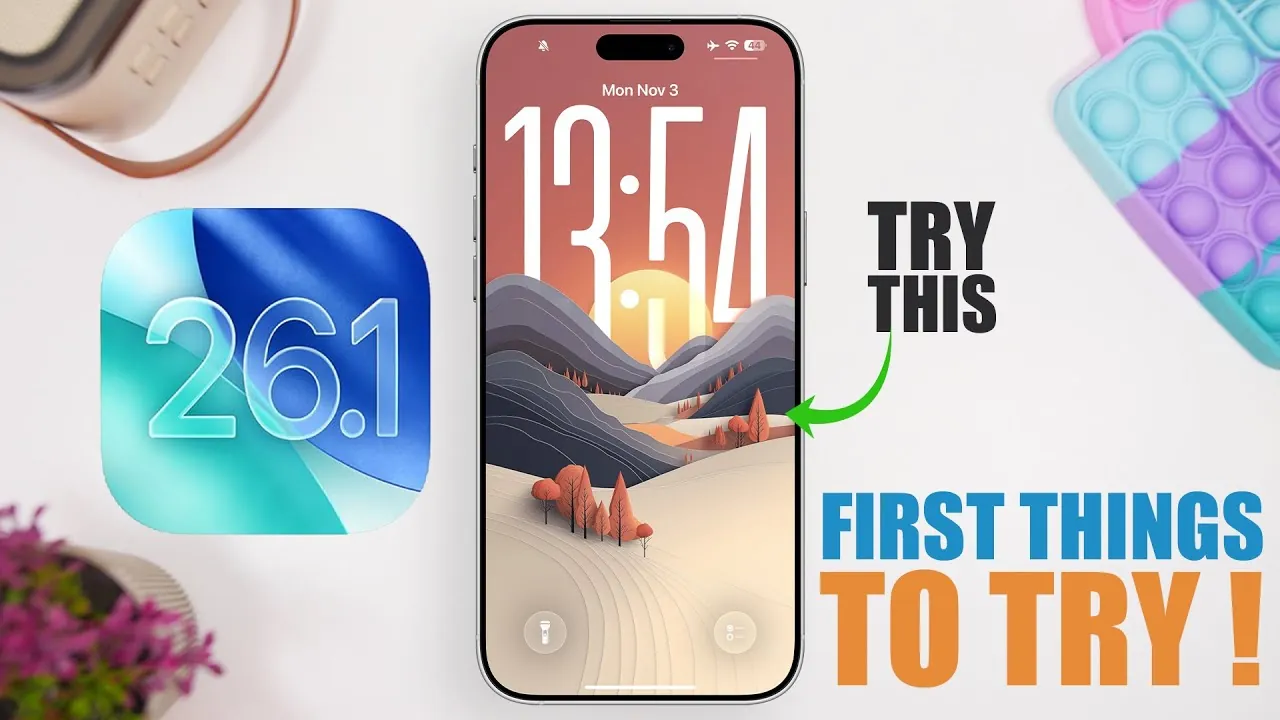
Apple’s iOS 26.1 update has officially arrived, bringing a host of new features designed to enhance usability, customization, and accessibility. Whether you’re a casual user or a tech enthusiast, this update introduces tools that make your device more intuitive and efficient. Below is a detailed look at the top 10 features you should explore to get the most out of this update in a new video from iReviews.

1. Redesigned Text Selection Menu
Editing text has become significantly more user-friendly with the revamped text selection menu. The smoother animations and intuitive layout make actions like copy, paste, and share more accessible than ever. With a simple tap or swipe, you can now streamline text editing, improving both speed and precision. This update is particularly beneficial for users who frequently work with documents or notes on their devices.
2. Liquid Glass Display Design
The new “Liquid Glass” display option introduces a sleek and modern aesthetic to your device. You can choose between “Clear” and “Tinted” effects, allowing you to customize the appearance of your screen while maintaining readability. This feature not only enhances the visual appeal of your device but also ensures that functionality remains uncompromised. It’s a subtle yet impactful way to personalize your iOS experience.
3. Apple Music Swipe Navigation
Navigating your music library has never been easier. With the addition of swipe gestures in the Apple Music app, you can seamlessly switch between songs without relying on on-screen buttons. This feature allows for a more immersive listening experience, letting you focus on enjoying your music without unnecessary interruptions. It’s a small change that makes a big difference for music lovers.
4. Disable Lock Screen Camera Access
Accidentally opening the camera from the lock screen can be frustrating, but iOS 26.1 offers a solution. You can now disable the swipe-to-open camera feature, enhancing both privacy and convenience. This update is particularly useful for users who value security or want to prevent unintentional camera activation. The option can be easily toggled in the settings menu.
5. Show Borders Accessibility Feature
For users who require clearer visual distinctions, the new “Show Borders” accessibility feature is a fantastic option. By adding visible outlines to interface elements, this option improves navigation for individuals with visual impairments or those who prefer a more defined interface. Located in the accessibility settings, this feature underscores Apple’s commitment to inclusivity and user-friendly design.
6. Slide to Stop Alarms and Timers
Managing alarms and timers has been made more intuitive with the introduction of the slide-to-stop feature. Instead of tapping, you can now slide to stop alarms or timers, reducing the likelihood of accidental snoozes. For those who prefer the traditional tap-to-stop method, this feature can be disabled in the settings. It’s a thoughtful addition that caters to different user preferences.
7. Haptic Feedback for Calls
Feel more connected during calls with the addition of subtle haptic feedback. When you start or end a call, your device provides a gentle vibration to confirm the action. This tactile feature, which can be enabled in the phone app settings, adds a new layer of interaction and ensures that you’re always aware of your call status. It’s a small but meaningful enhancement to the calling experience.
8. Improved Video Scrubber
Navigating through videos in the Photos app is now more precise thanks to the updated video scrubber. Featuring a wider design, this tool makes it easier to locate specific moments in your videos. Whether you’re editing footage or simply reviewing a favorite clip, this enhancement ensures greater accuracy and ease of use. It’s a valuable update for anyone who frequently works with video content.
9. Updated Photo Interaction Menu
Managing your photo library has been simplified with the redesigned photo interaction menu. Larger buttons for sharing, favoriting, and deleting make these actions more accessible, especially for users who frequently organize their photos. This update not only improves functionality but also enhances the overall user experience, making it easier to keep your photo library organized.
10. Custom Workouts in the Fitness App
Fitness enthusiasts will appreciate the ability to create and start custom workouts directly in the Fitness app. This feature allows you to tailor exercise routines to your specific preferences, making your fitness journey more personalized and effective. Whether you’re focusing on strength training, cardio, or flexibility, this update ensures that your workouts are as unique as your goals.
Explore the Full Potential of iOS 26.1
iOS 26.1 delivers a range of features that prioritize convenience, customization, and accessibility. From improved text editing tools to enhanced fitness options, these updates refine your device’s functionality in meaningful ways. Take the time to explore these features and discover how they can enhance your daily interactions with your iPhone or iPad. With iOS 26.1, Apple continues to set the standard for intuitive and user-focused technology.
Check out more relevant guides from our extensive collection on iOS 26.1 features that you might find useful.
Source & Image Credit: iReviews
Filed Under: Apple, Apple iPhone, Top News
Latest Geeky Gadgets Deals
Disclosure: Some of our articles include affiliate links. If you buy something through one of these links, Geeky Gadgets may earn an affiliate commission. Learn about our Disclosure Policy.
Credit: Source link