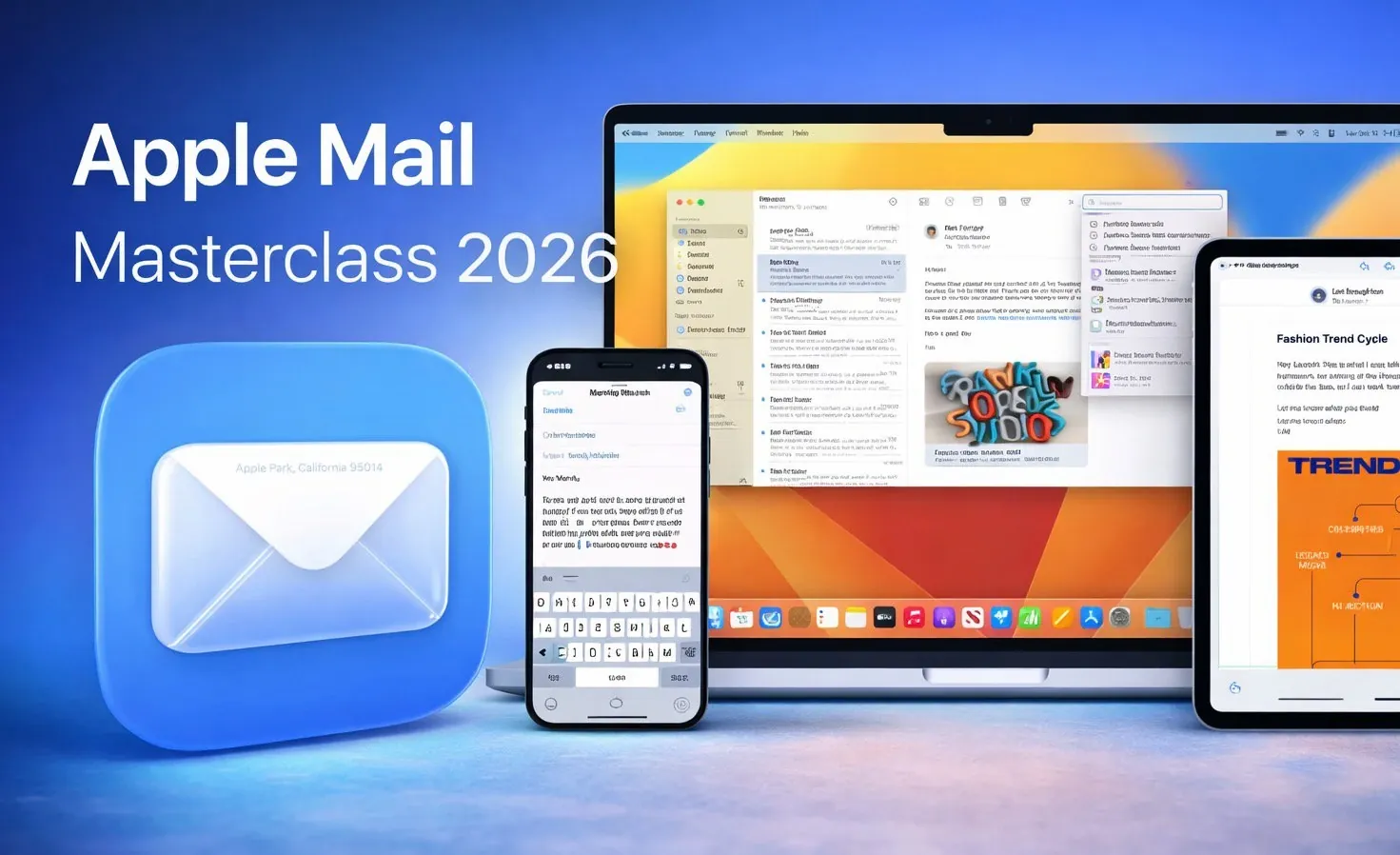
Learn how Apple Mail can help you transform a cluttered inbox into a streamlined and efficient communication hub. Whether you’re managing work emails, personal messages, or both, Apple Mail offers a range of powerful features to simplify your digital life. From seamless device syncing to advanced privacy options, this app goes beyond basic email functions to become a true productivity enhancer.
In this detailed overview Habits Planners take you through 25 tips and features designed to transform the way you handle email. Discover how to organize your inbox with Smart Mailboxes, schedule emails for perfect timing, and integrate Apple Mail with other apps to turn messages into actionable tasks. With insights into decluttering, privacy safeguards, and more, this guide will inspire you to take control of your inbox and make email management easier, and maybe even enjoyable.
Apple Mail Features Overview
TL;DR Key Takeaways :
- Apple Mail simplifies email management with streamlined account setup, syncing across devices, and tools for inbox organization, such as custom mailboxes and Smart Mailboxes.
- Advanced features like “Send Later,” “Undo Send,” and email reminders enhance productivity and ensure timely communication.
- Robust privacy and security features, including “Protect Mail Activity” and blocking unwanted senders, safeguard your personal information and inbox from intrusions.
- Seamless integration with Apple apps like Notes, Reminders, and Calendar turns emails into actionable tasks, boosting efficiency and task management.
- Customizable options, powerful search tools, and VIP prioritization ensure a user-friendly experience tailored to individual needs and preferences.
Streamlined Account Setup and Syncing
Setting up email accounts in Apple Mail is intuitive and efficient. You can seamlessly add accounts from popular providers such as Gmail, Outlook, or iCloud. Once configured, emails automatically sync across all your Apple devices, making sure a unified experience. To get started, navigate to your device’s “Accounts” settings, input your credentials, and enable syncing for mail, contacts, and calendars. This synchronization ensures that any changes, such as deleting, archiving, or marking emails as read, are instantly reflected across all devices, keeping your inbox consistent and accessible wherever you are.
Organizing Your Inbox for Maximum Efficiency
A well-organized inbox is crucial for managing emails effectively, especially when dealing with high volumes of messages. Apple Mail offers several tools to help you maintain order:
- Create custom mailboxes and subfolders to categorize emails by project, sender, or topic, making it easier to locate specific messages.
- Use Smart Mailboxes to automatically filter emails based on criteria such as unread status, flagged messages, or specific keywords.
- Group emails by sender or category to declutter your inbox and focus on what matters most.
These features empower you to manage your inbox efficiently, reducing the time spent searching for important emails and minimizing distractions.
25 Mail App Tips & Features for iPhone, iPad & Mac

Here are more guides from our previous articles and guides related to Apple Mail that you may find helpful.
Efficient Email Cleanup
Over time, inboxes can become cluttered with unnecessary messages, but Apple Mail provides tools to help you clean up efficiently:
- Unsubscribe with ease using the banner that appears at the top of promotional emails, allowing you to opt out of unwanted newsletters with a single tap.
- Mark spam emails to train Apple Mail’s junk mail filter, making sure that similar messages are automatically sorted in the future.
- Use the search function to locate and delete outdated or irrelevant messages in bulk, freeing up space and decluttering your inbox.
These cleanup tools help you maintain a tidy inbox with minimal effort, allowing you to focus on the emails that truly matter.
Customizing Your Email Experience
Apple Mail offers extensive customization options to tailor the app to your preferences and workflow:
- Adjust fonts and colors for improved readability, making sure a comfortable email-reading experience.
- Enable conversation highlighting to group related emails into threads, making it easier to follow ongoing discussions.
- Personalize the toolbar and swipe actions for quick access to frequently used features like archiving, flagging, or deleting emails.
These customization options allow you to create an email environment that works for you, enhancing both usability and efficiency.
Privacy and Security Features
In an age where digital privacy is a growing concern, Apple Mail provides robust features to protect your personal information:
- Protect Mail Activity blocks tracking pixels and hides your IP address, preventing senders from knowing when or where you opened an email.
- Manage remote content settings to block images and links from unknown senders, reducing the risk of phishing attempts.
- Block unwanted senders to prevent spam or intrusive messages from reaching your inbox.
These privacy tools give you greater control over your email environment, making sure your data remains secure and your inbox stays free of unwanted intrusions.
Boosting Productivity with Advanced Features
Apple Mail includes several advanced features designed to enhance productivity and streamline your workflow:
- Schedule emails with the “Send Later” option, making sure your messages arrive at the most appropriate time.
- Undo Send to retract emails within a brief window after sending, helping you avoid mistakes.
- Set reminders to follow up on important messages or annotate attachments directly within the app for better task management.
These tools enable you to manage your communications more effectively, reducing errors and making sure timely responses.
Seamless Integration with Other Apps
Apple Mail integrates seamlessly with other Apple apps, enhancing its functionality and making it a central hub for managing tasks and communication:
- Link emails to Notes, Reminders, or Calendar to turn messages into actionable tasks, making sure you stay on top of deadlines and commitments.
- Use the “Hide My Email” feature to generate unique email addresses for online forms or subscriptions, protecting your primary address from spam and unwanted messages.
This integration simplifies task management and enhances productivity, making Apple Mail a powerful tool for both personal and professional use.
Powerful Search and Filters
Apple Mail’s advanced search capabilities make it easy to locate specific emails, even in a crowded inbox:
- Use keyword suggestions, filters, and Boolean operators to refine your search results and find exactly what you need.
- Search for specific criteria, such as “attachments from [sender],” to quickly locate relevant files or messages.
- Perform bulk actions, like deleting or moving multiple emails, to streamline inbox management and save time.
These tools ensure you can quickly find important messages, improving efficiency and reducing frustration.
Prioritizing VIP Contacts
Apple Mail allows you to prioritize key contacts, making sure you never miss critical communications:
- Highlight VIP emails in your inbox for easy identification, helping you focus on messages from important individuals.
- Set unique notifications for VIP messages, making sure you are alerted to high-priority emails without being overwhelmed by less important alerts.
This feature is particularly useful for managing correspondence with colleagues, clients, or family members, helping you stay on top of essential communications.
Accessibility and Layout Options
Apple Mail is designed to accommodate diverse user needs, offering a range of accessibility and layout options:
- Adjust column layouts, sort orders, and preview panel positions to create an interface that suits your preferences.
- Highlight unread messages with bold fonts for better visibility, making sure you never overlook important emails.
These options make Apple Mail user-friendly and accessible, making sure a comfortable experience for all users.
Maximizing the Potential of Apple Mail
Apple Mail is more than just an email client, it’s a comprehensive tool for managing communication, enhancing productivity, and safeguarding your privacy. By using its features, from inbox organization and advanced search capabilities to seamless app integration and robust security measures, you can optimize your workflow and stay productive across your Mac, iPhone, and iPad. With its extensive customization options and user-friendly design, Apple Mail adapts to your needs, making it an essential part of your digital toolkit.
Media Credit: Happy Habits Planners
Filed Under: Apple, Guides
Latest Geeky Gadgets Deals
Disclosure: Some of our articles include affiliate links. If you buy something through one of these links, Geeky Gadgets may earn an affiliate commission. Learn about our Disclosure Policy.
Credit: Source link