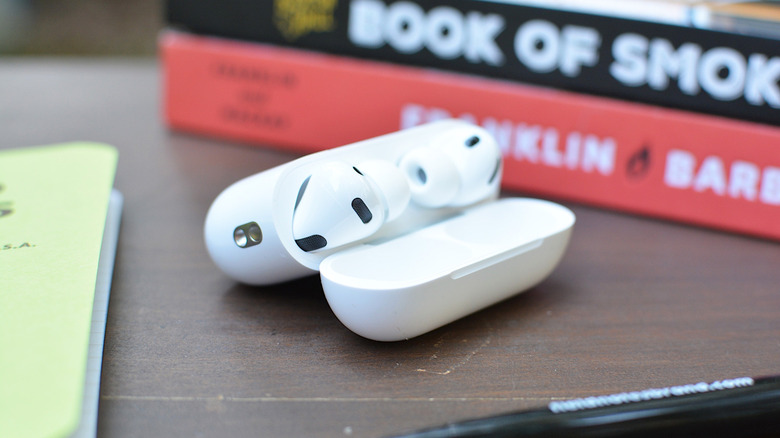
If you don’t own an Apple Watch, this is another way you can control your iPhone’s camera.
When Apple released iOS 26 last September, it added a handful of new AirPods features. One of those was Camera Remote. As you can probably guess from the name, it allows you to use your AirPods as a wireless shutter release for your iPhone.
This is useful if you don’t have an Apple Watch handy and therefore can’t access the dedicated Camera Remote app. Instead of placing your iPhone on a surface, setting a 10-second timer and running back to take a selfie, you can just click your AirPods to trigger the camera whenever you’re ready. If that sounds useful, here’s how to configure your AirPods for camera controls.
What you’ll need to control your iPhone camera with AirPods
Before I explain how to enable Camera Remote, let’s go over what you’ll need.
Unfortunately, older models of AirPods, like the original Pro release, don’t support Camera Remote.
How to enable Camera Remote
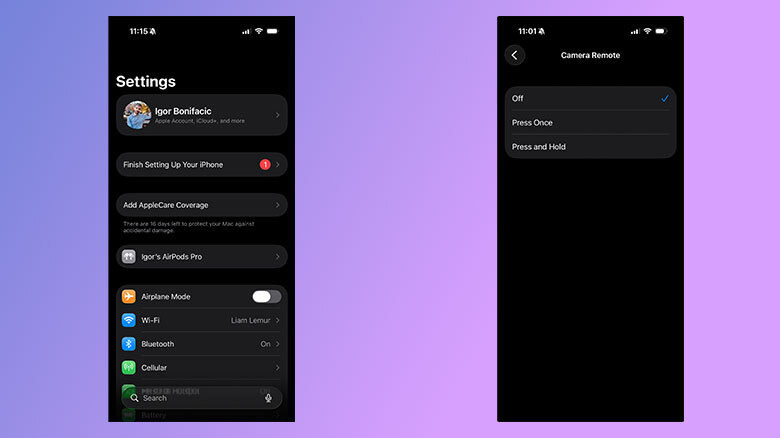
By default, Camera Remote is turned off. To start, if your iPhone and AirPods aren’t already paired, follow our guide to do so before returning here. Once you’re ready, follow these instructions:
- Open the Settings app on your iPhone.
- Tap the name of your AirPods. If they don’t appear, open your AirPods case.
- Scroll down and find the Camera Control section.
- Tap the Camera Remote field and select either Press Once or Press and Hold.
Now, with Camera Remote enabled, any time you have the Camera app on your iPhone open, you can snap a photo or start and stop recording a video by pressing on the stem or Digital Crown of your AirPods or AirPods Max. It’s worth pointing out here that (at least one of) your AirPods have to be in your ears for this to work. If you just have them sitting on your desk or in your palm, you won’t be able to control your camera with them.
Note that if you enable the setting, you won’t be able to use your AirPods to wake Siri or switch between listening modes when the Camera app on your phone is open. As Apple explains in the Settings app: “When using AirPods for camera actions, if you select Press Once, media control gestures will be unavailable, and if you select Press and Hold, listening mode and Siri gestures will be unavailable.”
Credit: Source link