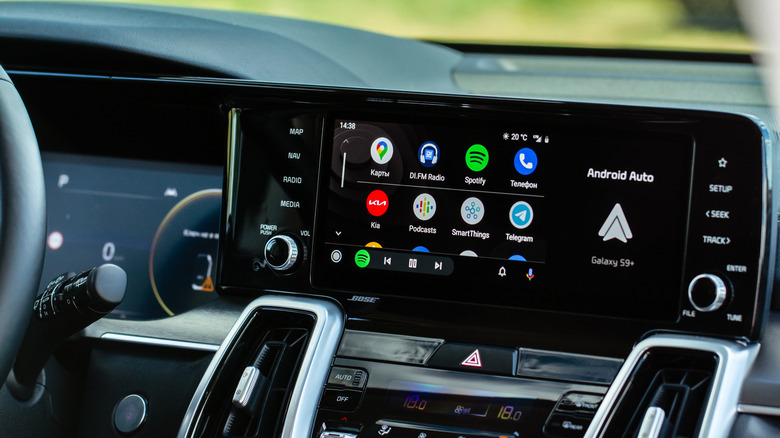
You don’t have to sacrifice your privacy.
You’re about to head out for a long drive. You get in your car and expect Android Auto to automatically connect, as always, so you can access your map app and your playlists, but it doesn’t. Instead, you get a red error screen that reads “Communication error 21 — Being connected to a VPN may prevent Android Auto from starting.”
Plenty of people use VPNs to protect their privacy online, so keeping one running on your phone isn’t going to be uncommon. Still, as Android Auto blocks VPN connections by default, it’s quite annoying for privacy-conscious drivers. Thankfully, the fix is simpler than you’d think.
Why doesn’t Android Auto work over VPN?
While most apps will work just fine over a VPN, Android Auto isn’t a traditional app. Rather than making its own network requests, it works as an extension of your phone by routing data through predefined APIs designed for a distraction-free driving experience. Because a wireless connection to Android Auto relies on a direct local Wi-Fi link between the phone and the car, system-level networking features like VPNs and custom proxy configurations can prevent it from connecting.
What is split tunneling, and how does it help?
Split tunneling is a common VPN feature that lets you choose which apps go through the encrypted tunnel and which ones connect directly to the internet. Therefore, instead of routing all your phone’s traffic through the VPN, you can carve out exceptions for specific apps.
For Android Auto, this means the app gets the direct connection it needs while everything else hides behind encryption. That’s ideal for browsing, banking apps and other sensitive activity.
Of course, split tunneling isn’t just for Android Auto. Any app that requires a direct internet connection should use it, such as certain smart home platforms, streaming services and gaming apps.
How to enable split tunneling for Android Auto
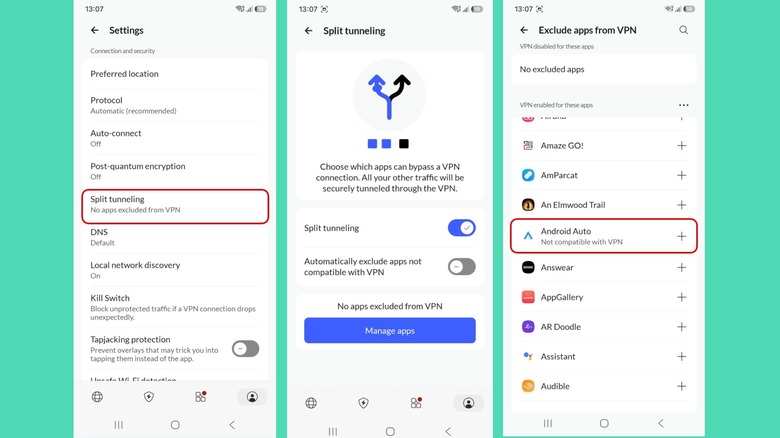
The steps vary slightly depending on which VPN provider you use, but the general process looks like this:
-
Open your VPN app and go to Settings.
-
Find the split tunneling option. Toggle split tunneling on.
-
Add Android Auto to the exclusion list. This is also the place where you’ll see if other apps are not compatible with VPNs.
-
Reconnect your VPN to apply changes.
Some VPNs, like NordVPN (shown in the pictures), even offer an option to automatically exclude apps that aren’t compatible with VPN connections, therefore handling the situation for you.
What happens if Android Auto doesn’t appear in the app list? There are a few things you can try. First is to enable “Show system apps” in your VPN’s split tunneling menu, which should be available through a three-dot menu or filter icon. Alternatively, you might need to enable system apps in Android settings by going to Settings > Apps > Filter icon > Show system apps.
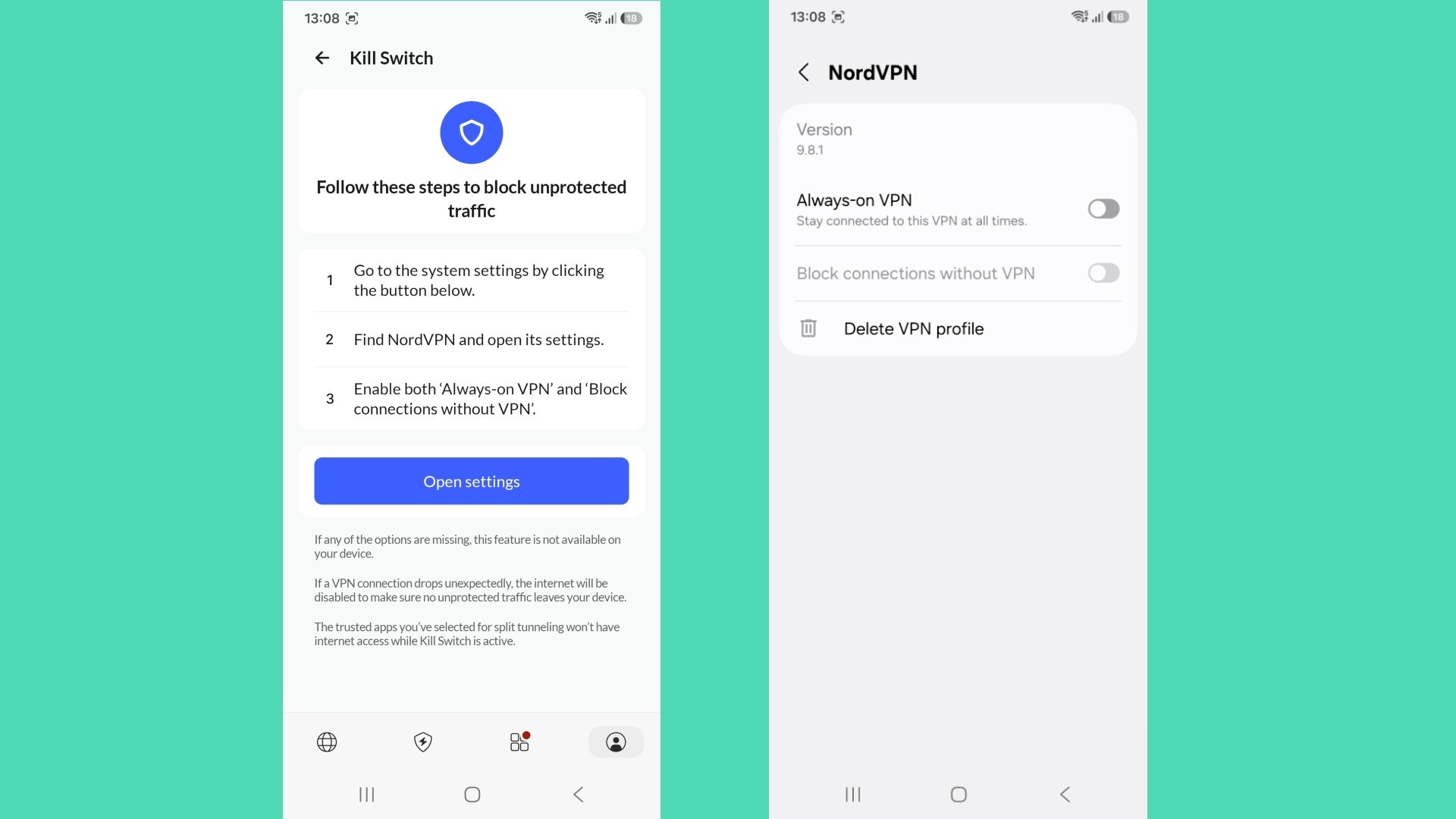
If it’s still not working for you, you might want to look at the VPN kill switch. This feature blocks all internet traffic if your VPN connection drops. That’s great for privacy, but it can interfere with split tunneling. If Android Auto still won’t connect after enabling split tunneling, try disabling the kill switch temporarily. You can usually find this feature under Settings > Kill Switch > Block connections without VPN (toggle off).
 Gabriela Vatu for Engadget
The headache-free option: Use wired Android Auto
If you’d rather skip this whole issue and bypass VPN settings entirely, you can simply plug your phone into your car via a USB cable. A wired connection allows Android Auto and your VPN to coexist.
Ultimately, Android Auto’s incompatibility with active VPN tunnels comes down to its reliance on a direct local connection. Split tunneling resolves the conflict at its root, so it’s a relatively easy fix. The takeaway is simple: Privacy and in-car functionality aren’t mutually exclusive.
Credit: Source link