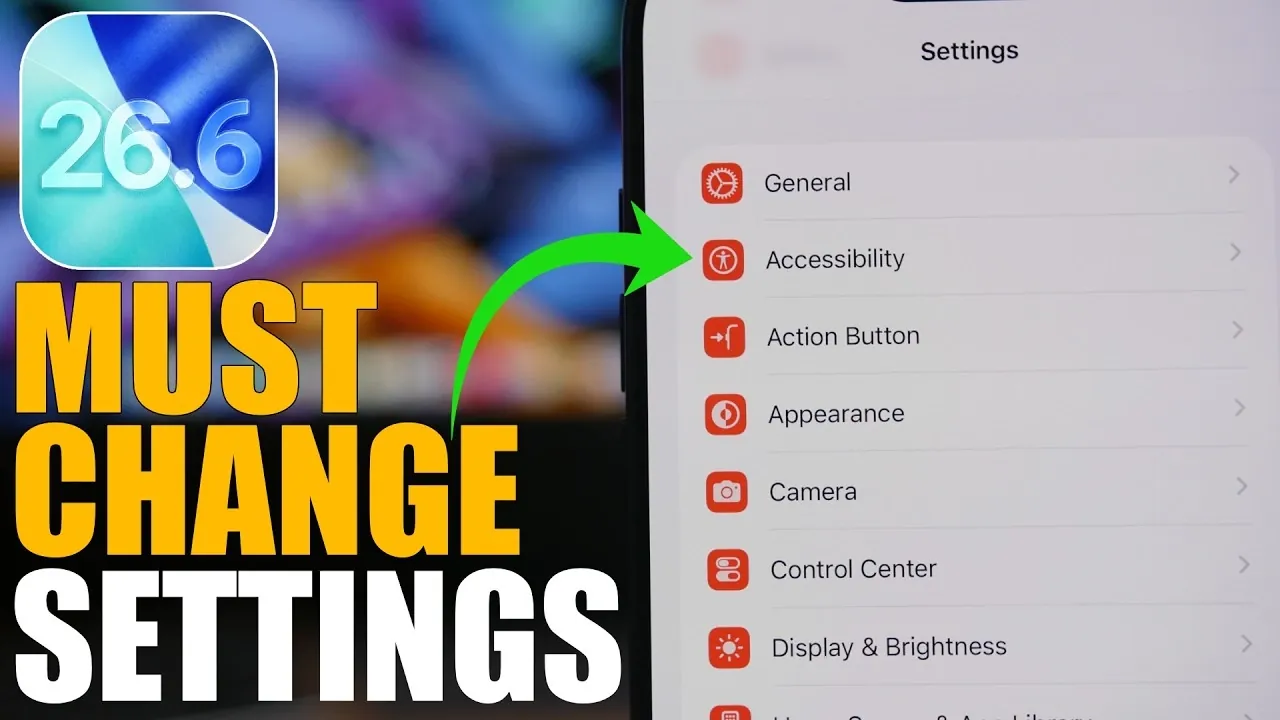
The release of iOS 26.6 marks the final update in the iOS 26 series, setting the stage for the highly anticipated iOS 27. While this update does not introduce major new features, it focuses on refining performance, enhancing security, and improving battery efficiency. To ensure your device is fully optimized and ready for the transition, it is essential to adjust several key settings. Below is a detailed video from iReviews on the most important changes you should make to maximize your device’s performance and security.

1. Prepare for iOS 27
iOS 26.6 includes updates to Siri and search indexing, laying the groundwork for iOS 27. To ensure a seamless transition, it is important to review and adjust Siri’s app access settings:
- Open Settings > Siri & Search.
- Enable app-specific options to allow indexing for relevant apps.
This adjustment ensures that Siri and Spotlight search remain efficient and functional when iOS 27 is installed, providing a smoother user experience.
2. Enable Automatic Updates
Keeping your device updated is critical for maintaining security and performance. To ensure you never miss an important update:
- Go to Settings > General > Software Update.
- Turn on Automatic Updates.
- Activate Background Security Improvements to automatically apply security patches as they become available.
This proactive measure minimizes vulnerabilities and ensures your device operates at peak efficiency.
3. Turn On Automatic App Updates
Outdated apps can lead to crashes, compatibility issues and security risks, particularly during major software transitions like iOS 27. To keep your apps up to date:
- Navigate to Settings > App Store.
- Enable Automatic Downloads for app updates.
This ensures your apps remain compatible with the latest iOS version and benefit from ongoing bug fixes and performance enhancements.
4. Adjust Accessibility Settings
Tweaking accessibility settings can improve usability while conserving battery life. To make these adjustments:
- Go to Settings > Accessibility > Display & Text Size.
- Enable Reduce Bright Effects to soften intense visuals and reduce energy consumption.
This simple change enhances your device’s usability, reduces eye strain and contributes to better battery efficiency.
5. Optimize Battery Health
Battery health is a key factor in maintaining your device’s long-term performance. To optimize it:
- Enable Optimized Battery Charging under Settings > Battery > Battery Health & Charging.
- Use the Charge Limit feature to cap charging at 90%, which helps preserve battery longevity.
- If faster charging is a priority, disable Clean Energy Charging, which may slow charging speeds to prioritize eco-friendly energy sources.
- Activate Adaptive Power Mode to dynamically adjust performance based on your usage patterns.
These settings not only extend battery life but also reduce wear and tear over time.
6. Review Privacy and Security Settings
Protecting your personal data is more important than ever. To enhance your privacy and security:
- Review app permissions for location, microphone, camera and Bluetooth access under Settings > Privacy & Security.
- Disable permissions for apps that do not require them.
- Turn off app tracking to prevent unnecessary monitoring.
These changes safeguard your data while also reducing background activity, which can improve battery life and system performance.
7. Manage Background App Refresh
Background app refresh allows apps to update content in the background, but it can drain your battery and consume system resources. To manage this feature:
- Go to Settings > General > Background App Refresh.
- Select Off for apps you rarely use or choose Wi-Fi only to limit data usage.
This adjustment helps conserve battery life and ensures that system resources are allocated efficiently.
8. Disable Lock Screen Camera Access
The swipe-to-open camera feature on the lock screen is convenient but can lead to accidental activations, which drain your battery. To disable this feature:
- Navigate to Settings > Face ID & Passcode.
- Turn off Camera Access on the lock screen.
This small change prevents unintended usage and helps conserve battery life.
9. Fine-Tune Notifications
Excessive notifications can be distracting and drain your battery. To manage them effectively:
- Go to Settings > Notifications.
- Turn off notifications for non-essential apps or adjust their alert styles to minimize interruptions.
This ensures you only receive important alerts while reducing unnecessary background activity.
10. Secure Your Device
Enhancing your device’s security is essential for protecting your data. To secure your device:
- Enable Find My iPhone under Settings > Apple ID > Find My.
- Turn on two-factor authentication for your Apple ID.
- Regularly update your passcode and review trusted devices for any unauthorized access.
These steps provide an additional layer of protection, making sure your device and personal information remain secure.
Final Thoughts
iOS 26.6 is more than just a routine update, it is a critical step in preparing your device for the upcoming iOS 27. By implementing these 10 essential changes, you can optimize performance, enhance security and extend battery life. These adjustments not only improve your current experience but also ensure a smoother transition to the next major iOS release. Take the time to update your settings today to enjoy a more efficient, secure and reliable device.
Enhance your knowledge on iOS 26.6 by exploring a selection of articles and guides on the subject.
Source & Image Credit: iReviews
Filed Under: Apple, Apple iPhone, Technology News, Top News
Disclosure: Some of our articles include affiliate links. If you buy something through one of these links, Geeky Gadgets may earn an affiliate commission. Learn about our Disclosure Policy.
Credit: Source link