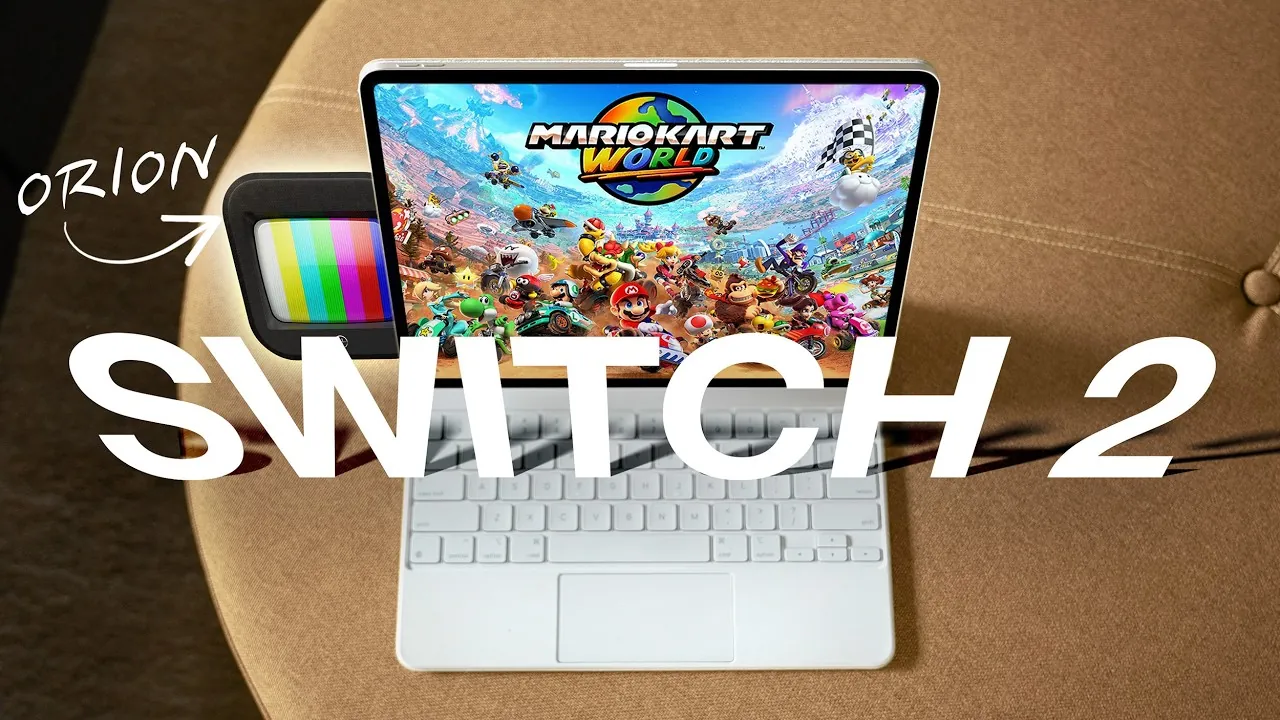
Using your iPad as an external monitor for gaming consoles such as the Nintendo Switch 2, PS5, or Xbox provides a unique combination of portability and convenience. This approach is particularly beneficial for gamers who travel frequently or have limited space, as it eliminates the need for a traditional TV. With the right tools and a straightforward setup process, your iPad can serve as a high-quality gaming display, delivering sharp visuals and responsive performance. The video below from MacRumors shows us how this is done.

Essential Tools for the Setup
To successfully connect your gaming console to your iPad, you will need the following components:
- HDMI Cable: This cable transmits both video and audio signals from your console to the iPad.
- Video Capture Card: A compact and affordable device, typically priced around $20, that acts as a bridge between your console and iPad.
- USB-C to HDMI Adapter: Necessary for iPads that lack a direct HDMI input, making sure compatibility with the capture card.
- Orion App: A free application that displays your console’s output on the iPad screen. It also offers optional paid features for enhanced functionality.
These tools are widely available and form the foundation for creating a seamless connection between your gaming console and iPad.
Step-by-Step Guide to Setting Up
Setting up your iPad as a gaming monitor is a simple process that requires minimal technical expertise. Follow these steps to get started:
- Step 1: Ensure your console’s dock, such as the Nintendo Switch 2 dock, is connected to a power source and ready for use.
- Step 2: Connect one end of the HDMI cable to the console’s dock and the other end to the video capture card.
- Step 3: Use a USB-C cable or adapter to connect the video capture card to your iPad. Double-check that all connections are secure.
- Step 4: Launch the Orion app on your iPad. The app will automatically detect the video signal and display it on the screen.
Once the setup is complete, you can begin gaming immediately. The Orion app is designed to minimize input lag, making sure a smooth and responsive gaming experience.
Optional Features to Enhance Your Gaming Experience
The Orion app includes several optional paid features that can further improve your gaming experience:
- CRT Screen Effect: This feature replicates the nostalgic appearance of older CRT monitors, making it ideal for retro gaming enthusiasts.
- 4K Upscaling: If your console supports 4K output, this feature enhances the resolution, providing sharper and more detailed visuals on your iPad.
While these features are not essential, they add significant value for gamers who want to customize and optimize their gaming setup.
Advantages of Using an iPad as a Gaming Monitor
Transforming your iPad into a gaming monitor offers several practical benefits:
- Portability: The lightweight and compact design of an iPad makes it an excellent choice for gaming on the go or in spaces where a TV is unavailable.
- Flexibility: This setup is compatible with multiple gaming consoles, including the Nintendo Switch 2, PS5, and Xbox, as well as other HDMI-enabled devices.
- Minimal Input Lag: The Orion app ensures a responsive connection, which is crucial for fast-paced and competitive gaming.
This method provides a practical and efficient solution for gamers who value convenience and versatility.
Practical Applications of This Setup
Using your iPad as a gaming monitor is particularly useful in the following scenarios:
- Travel-Friendly Gaming: Perfect for vacations or business trips, this setup allows you to enjoy your favorite games without needing a TV.
- Space-Saving Solution: Ideal for small apartments, dorm rooms, or other compact living spaces, this method eliminates the need for bulky equipment.
- Multi-Platform Flexibility: Easily switch between different consoles and devices, making it a versatile option for gamers with diverse setups.
This approach opens up new possibilities for enjoying your favorite games in various environments, whether at home or on the move.
Maximizing Your Gaming Setup
Using your iPad as an external monitor for gaming consoles like the Nintendo Switch 2, PS5, or Xbox is a practical and efficient solution for modern gamers. By combining tools such as an HDMI cable, video capture card, USB-C adapter, and the Orion app, you can create a portable and high-quality gaming setup. Optional features like 4K upscaling and CRT screen effects allow for further customization, enhancing the overall experience. Whether you’re traveling, saving space, or simply looking for a secondary display, this method ensures you can enjoy your favorite games with ease and flexibility.
Take a look at other insightful guides from our broad collection that might capture your interest on the Nintendo Switch 2.
Source & Image Credit: MacRumors
Filed Under: Apple, Apple iPad, Gaming News
Latest Geeky Gadgets Deals
Disclosure: Some of our articles include affiliate links. If you buy something through one of these links, Geeky Gadgets may earn an affiliate commission. Learn about our Disclosure Policy.
Credit: Source link